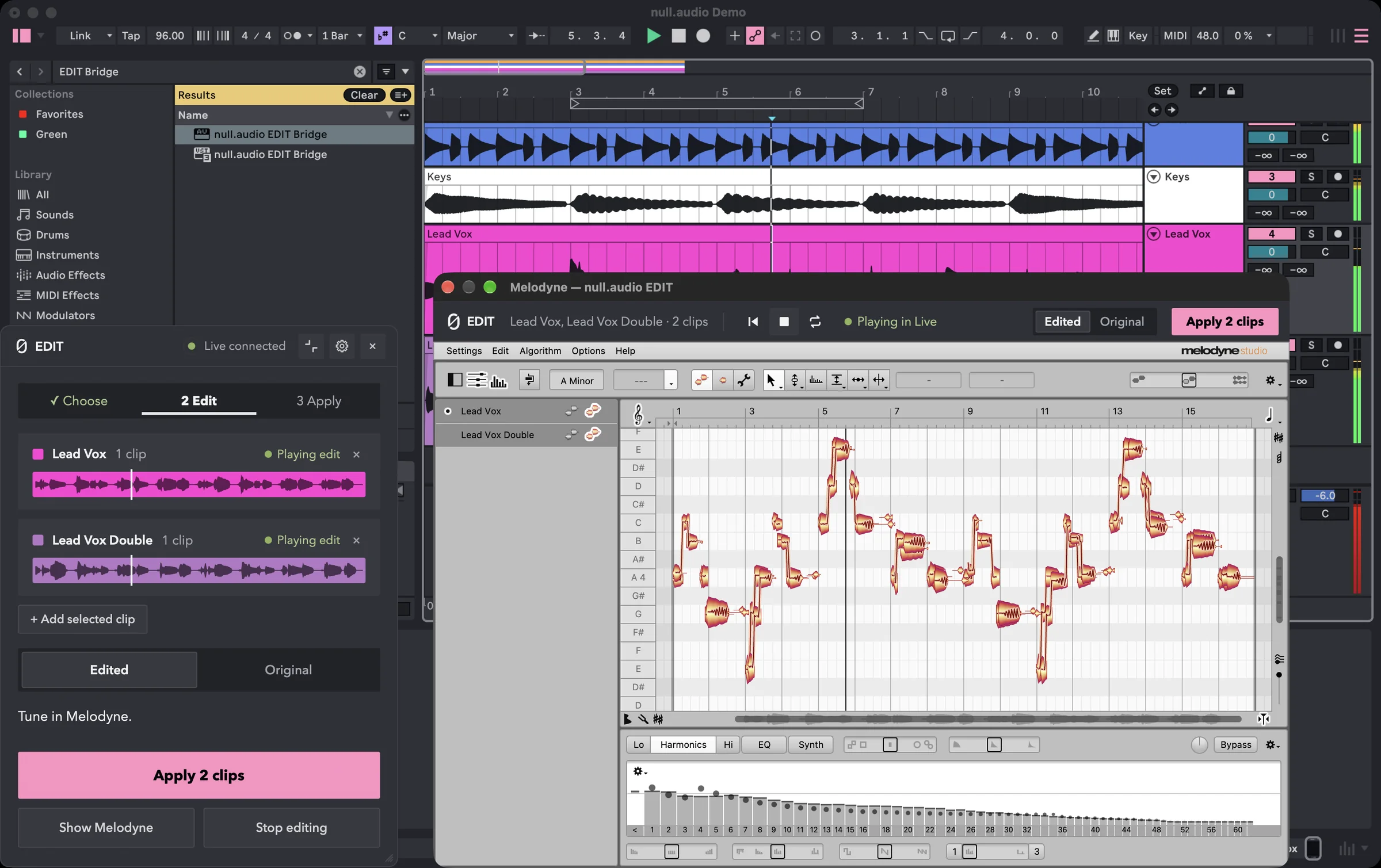
In Ableton Live, the Melodyne plug-in has to record your vocal before you can edit it. That's the Transfer pass, and it runs in real time. null.audio EDIT opens the clip in Melodyne without a Transfer, and the EDIT Bridge plays your edit in the Live mix. Transfer costs nothing extra and needs no Max for Live. EDIT is a separate purchase and needs Live 12.3 or later. I make EDIT.
Side by side
| Melodyne plug-in with Transfer | null.audio EDIT | |
|---|---|---|
| Getting the vocal in | Play it through in real time, and again after each new take | Opens straight away |
| Edited at once | The part you transferred, on the track Melodyne sits on | One clip, the clips next to it, the doubles on other tracks, or a whole track, in one Melodyne window |
| Hearing it in the mix | Yes, through the plug-in | Yes, through the EDIT Bridge |
| Your vocal chain | Plays after Melodyne, if Melodyne is first on the track | Plays after the Bridge, if the Bridge is first on the track |
| Tempo changes | Tempo automation can break sync or stop a transfer early; Melodyne's Variable tempo mode isn't supported in Live | Melodyne follows one tempo, so it lines up with Live only where the Set plays at that tempo; the panel warns you |
| Into the clip | Freeze and Flatten, which also prints the effects after Melodyne; or leave Melodyne running until the mixdown | Apply writes only the edited audio, as a new file; Revert puts the originals back |
| Changing it later | Open Melodyne on the track; the edits are saved with the Set | Edit the applied audio again; Melodyne's edit can't be reopened after Stop editing |
| Session View | Celemony advises Arrangement View | Arrangement View only |
| What you need | Melodyne and any Live version Celemony lists | Melodyne, EDIT, Live 12.3 or later with Max for Live, macOS 14 or later or Windows 11 |
When Transfer is the better choice
If you tune one vocal once and leave Melodyne on the track until the mixdown, Transfer does the job. The pass takes as long as the part, but you only do it once. Your Melodyne edits stay editable in the Set for as long as Melodyne is on the track. With EDIT, Melodyne's edit can't be reopened once you stop editing. To change it later, you open the applied clip and edit that audio again.
Transfer also works where EDIT can't run. EDIT needs Max for Live and Live 12.3 or later. The Melodyne plug-in needs neither, so on a Live version before 12.3, or without Max for Live, the plug-in with Transfer is the route that works.
When EDIT is the better choice
EDIT is for vocals that keep changing. Every new take or recut comp means another Transfer, and on a stack with doubles, each track needs its own Melodyne plug-in and its own transfer. With EDIT you click one clip in the verse, and the panel takes the clips next to it and offers the doubles that play with it. They open in one Melodyne window, and you hear each track through its own effects while the song plays.
Apply is the other difference. To get Melodyne's edit into the audio with the plug-in, you freeze and flatten the track, and that prints the effects after Melodyne too. Apply writes back only the edited vocal, and your vocal chain stays intact on the track. I wrote about why that matters to me in Why I stopped printing vocals with effects on them.
What both routes have in common
Melodyne is the editor either way, with your own licence and your edition's tools. Neither route makes Live an ARA host. In Live, Melodyne doesn't follow you when you move or cut a clip as it does in a DAW with ARA. With EDIT, if you move a clip while you edit, the panel tells you which one, so you can move it back or take it out of the edit.
There's a third route, Live's external sample editor. It opens the clip's file in standalone Melodyne at once, but saving changes the file itself, and you hear the vocal on its own while you edit. All three routes are step by step in How to use Melodyne in Ableton Live. The background is in ARA in Ableton Live.
I test EDIT with Melodyne 5.4.2 on macOS and with Melodyne on Windows 11, and the exact setups are under tested setups.
Sources
Primary documentation used for the technical details in this article.
- 01Melodyne in Live (opens in a new tab)Celemony (Melodyne 5 manual)
- 02Melodyne editions and technical matters (opens in a new tab)Celemony
- 03Clip View: Destructive Sample Editing (opens in a new tab)Ableton Reference Manual (Live 12)
I make null.audio. I checked what this page says about other products against their makers' own pages on 2 November 2026. If something has changed, email me at contact@null.audio and I'll correct it. Product names are trademarks of their owners. null.audio is not affiliated with, endorsed by or sponsored by Ableton, Celemony, Synchro Arts, Steinberg, Fender, PreSonus or DoublePi Technologies.