ALIGN lines up the timing of a vocal double (the Dub) to the take with the timing you want (the Guide). You work on the ALIGN panel in Live. Press Open ALIGN on the null.audio device to open it.
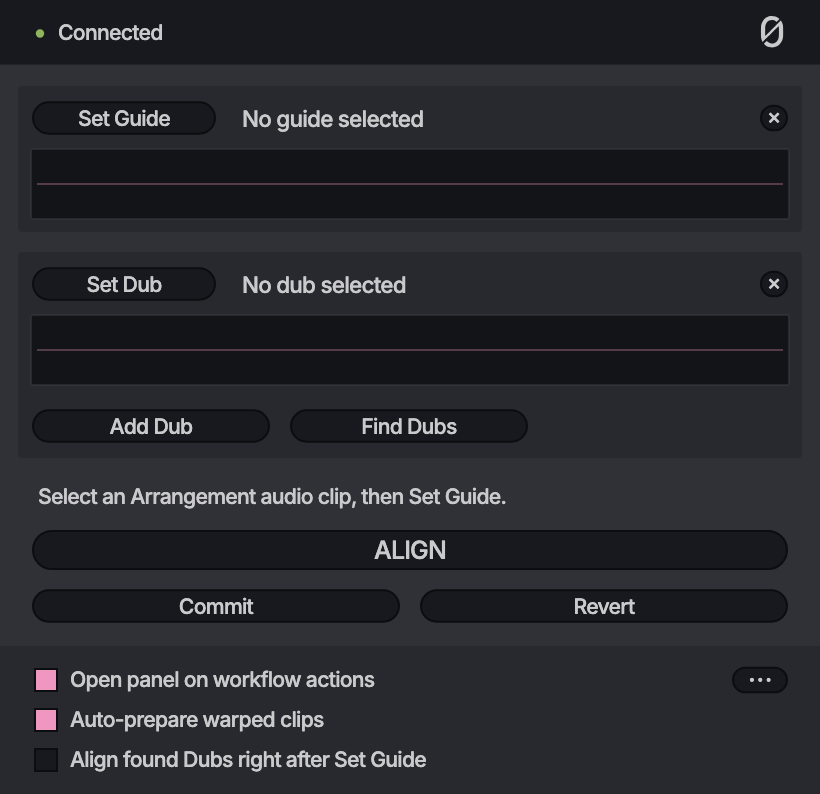
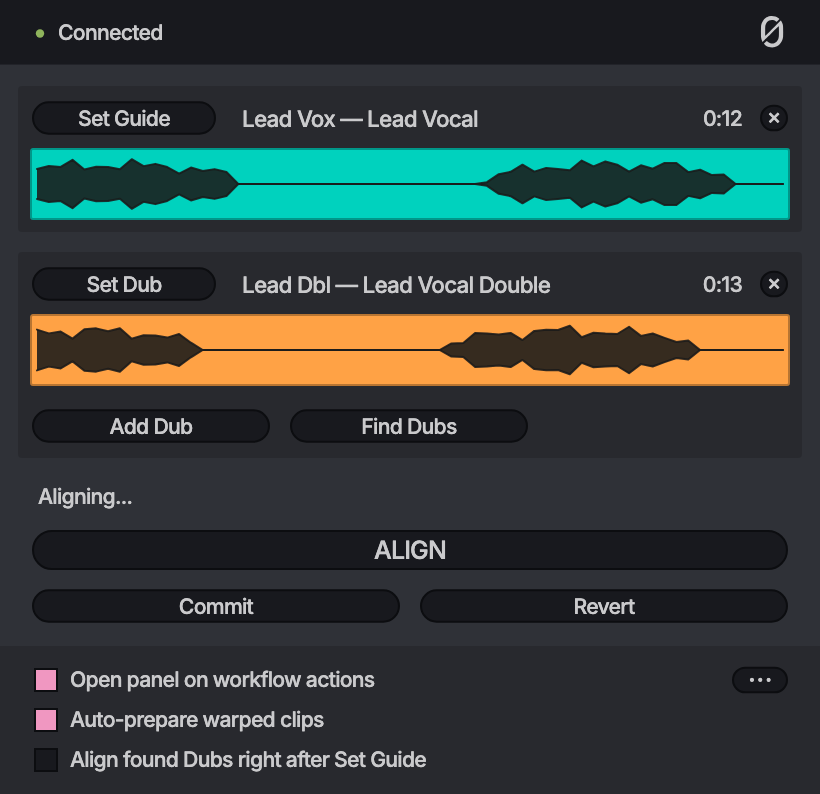
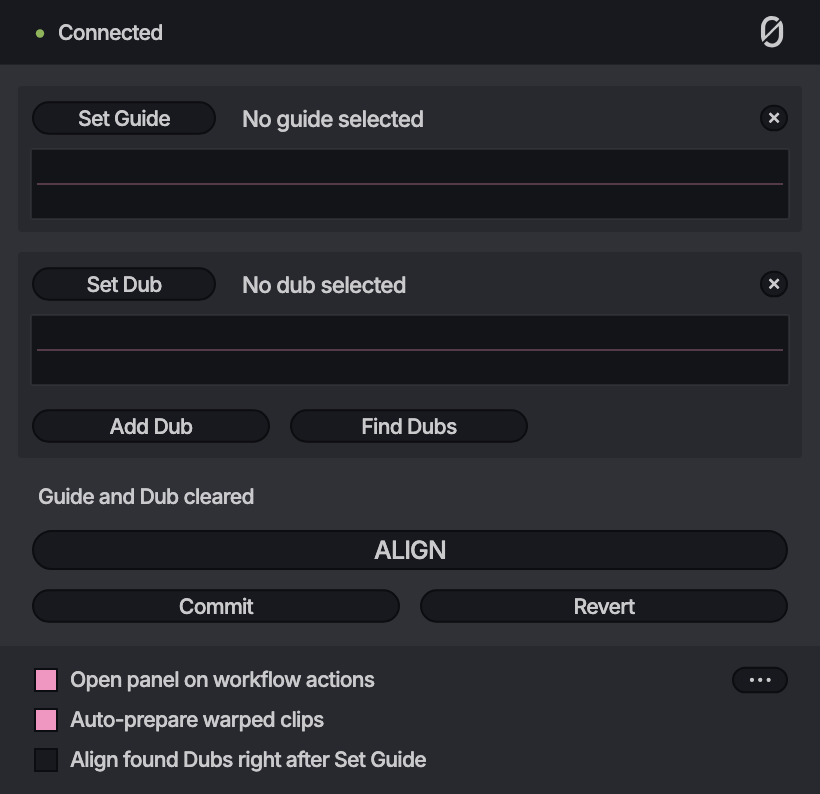
1. Select the Guide and use Set Guide
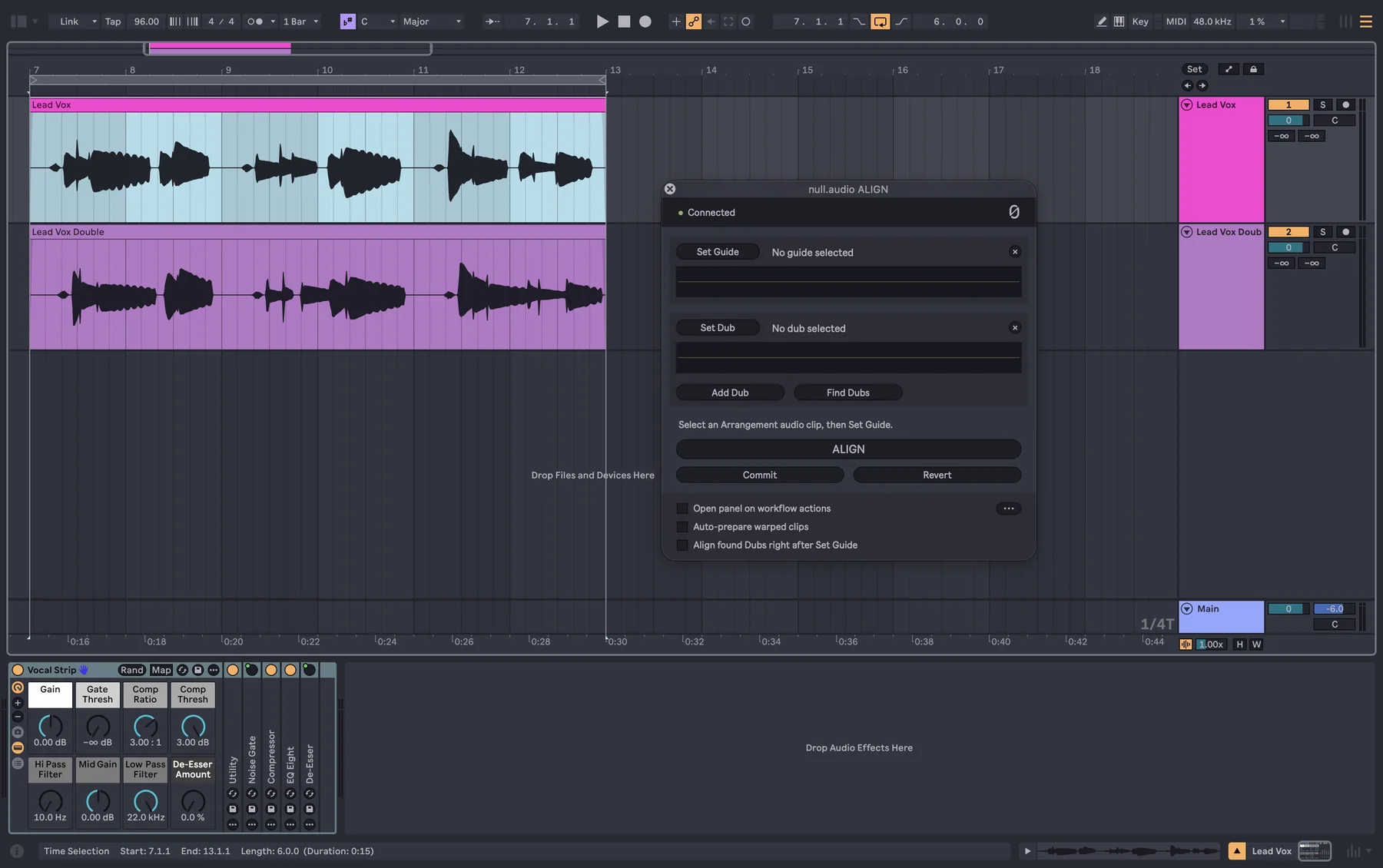
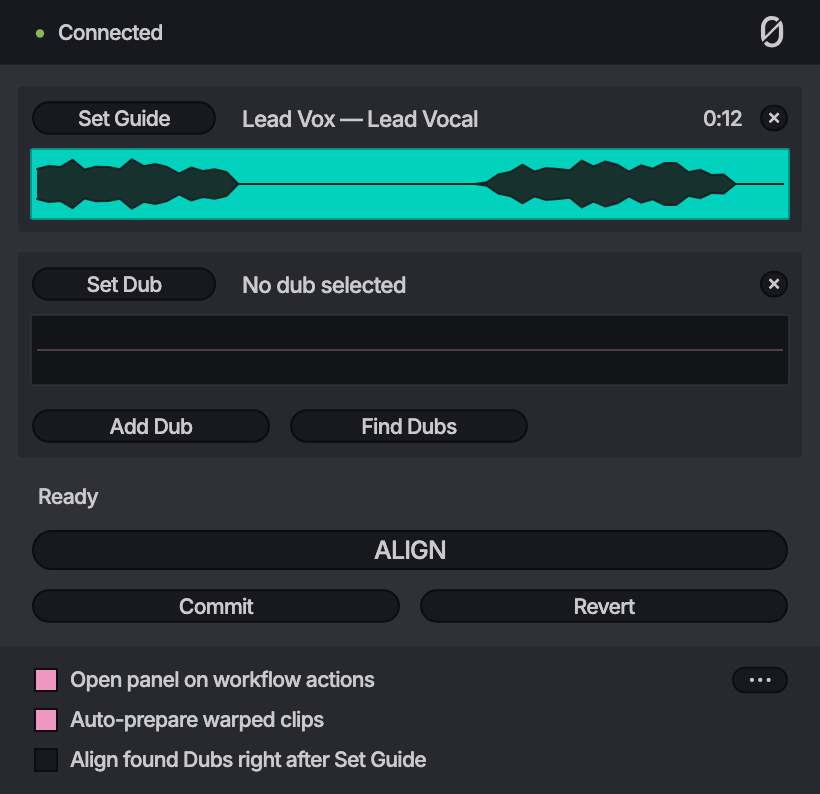
In Live's Arrangement, select the clip with the timing you want, then press Set Guide.
2. Select the Dub and use Set Dub
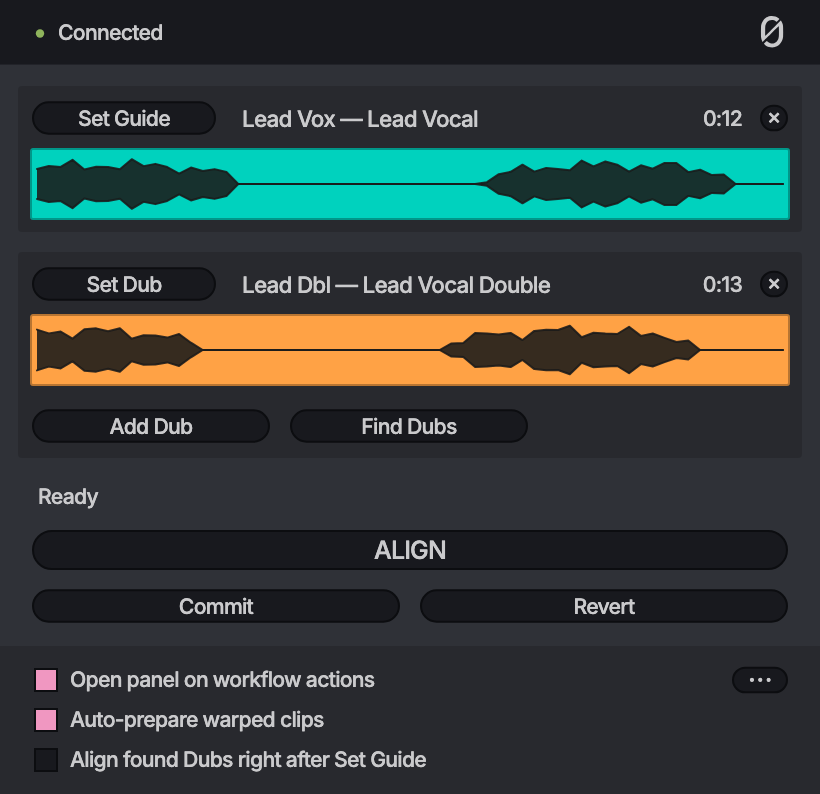
Select the clip to line up with the Guide, then press Set Dub. When both are set, the panel reads Ready.
Add Dub and Find Dubs under the Dub are for aligning several Dubs at once: see Several Dubs at once.
3. Open VocAlign with both clips ready and shape the alignment
Press ALIGN. VocAlign opens with the Guide and the Dub already in it, without playing them in first. Shape the alignment in VocAlign as you usually would.
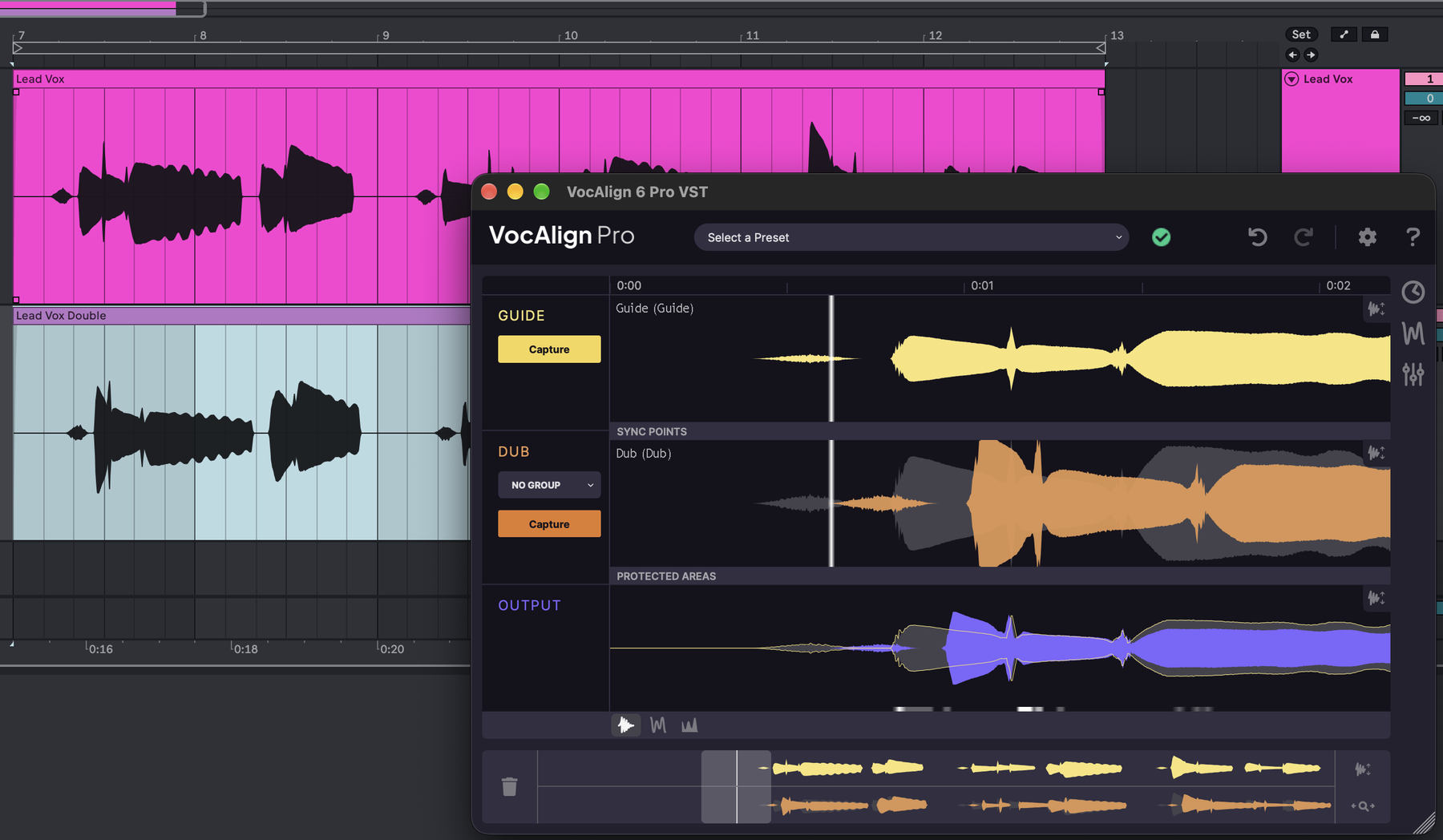
If VocAlign opens with empty lanes, see Troubleshooting.
4. Commit only the aligned Dub
Press Commit. Only the aligned Dub goes back to Arrangement View, while its vocal chain stays intact.
null.audio shows where ALIGN is on its ALIGN page:
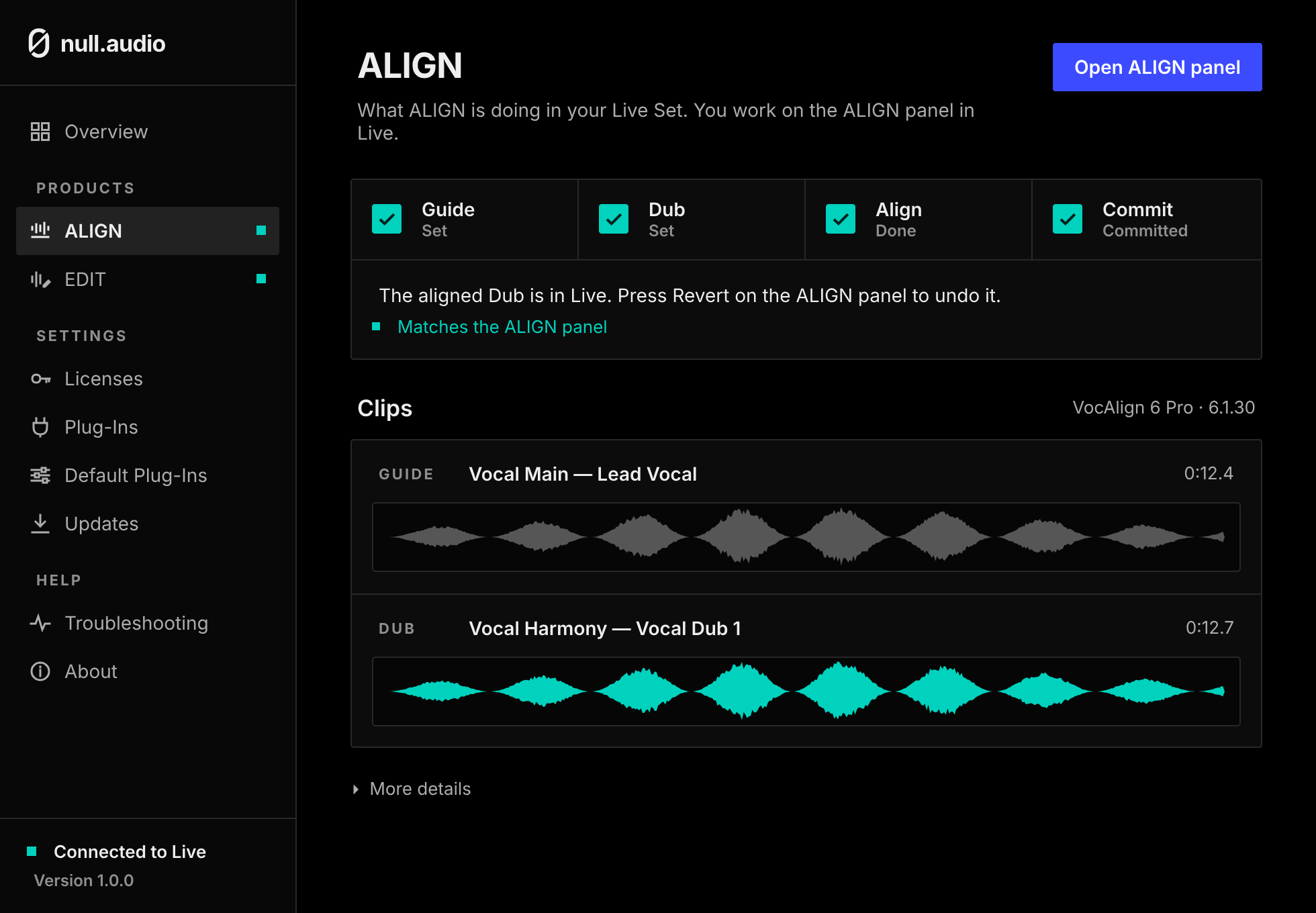
Revert alignment
Use Revert if you want to restore the prepared Dub. It puts back the Dub as it was before the first Commit of that Set Dub. This only changes the Dub clip ALIGN is working on; Live Set undo remains separate.
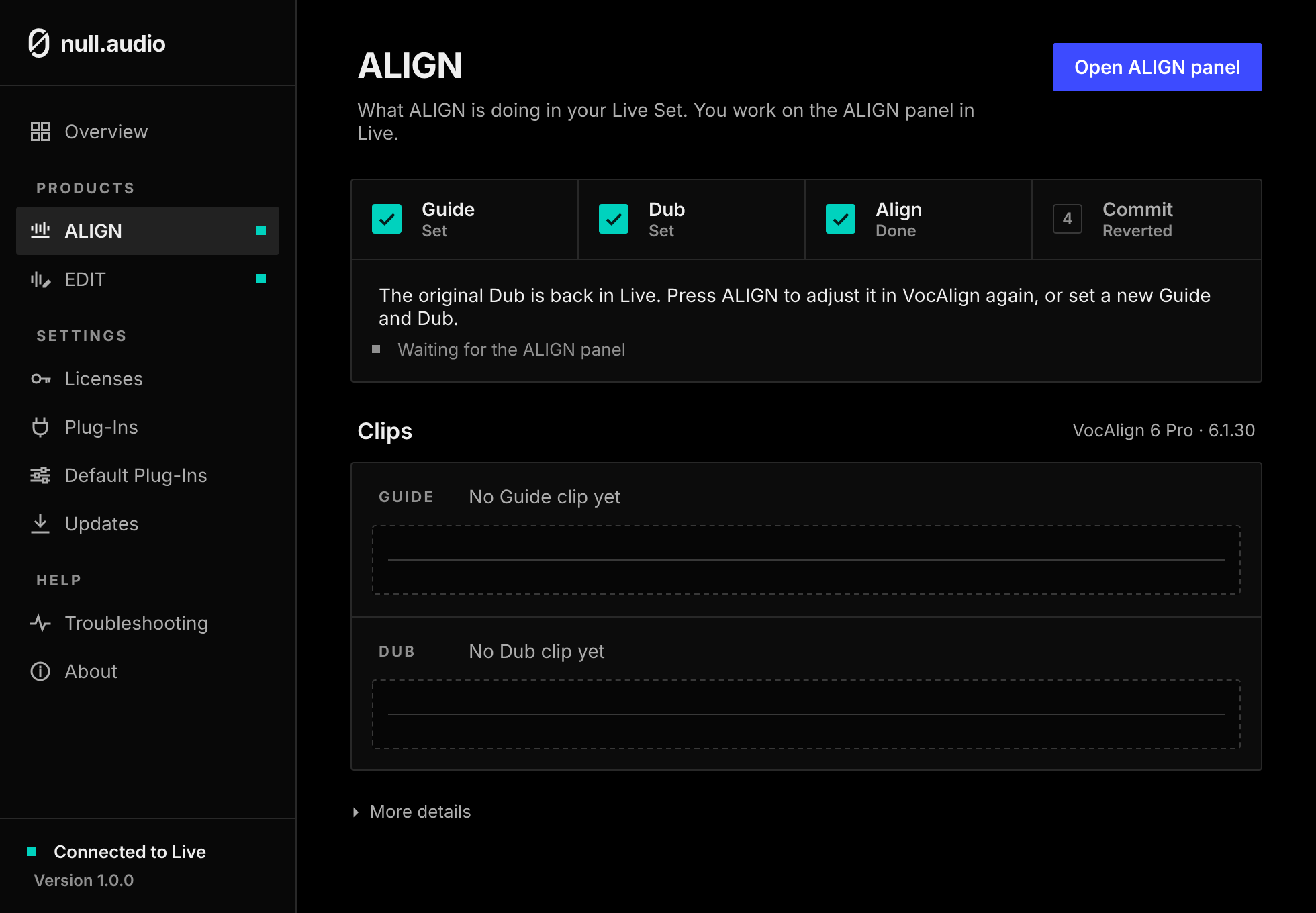
Clear the Guide or the Dub
The × next to each clip clears the Guide or the Dub selection.
Several Dubs at once
One Guide can take up to eight Dubs, and one ALIGN lines them all up. This works with every VocAlign ALIGN works with.
Find Dubs
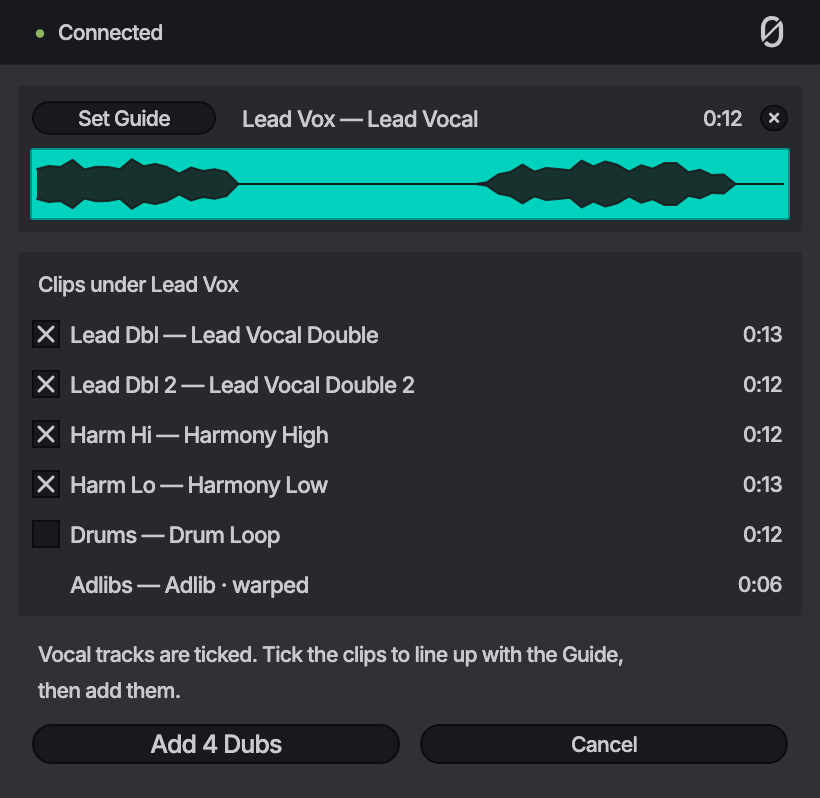
After Set Guide, press Find Dubs. The panel lists the clips under the Guide on other tracks and ticks the ones on vocal tracks. Untick a clip to leave it out or tick another, then press Add Dubs. A stretched warped clip is named in the list but left out: select it in Live and press Add Dub, so null.audio can prepare it.
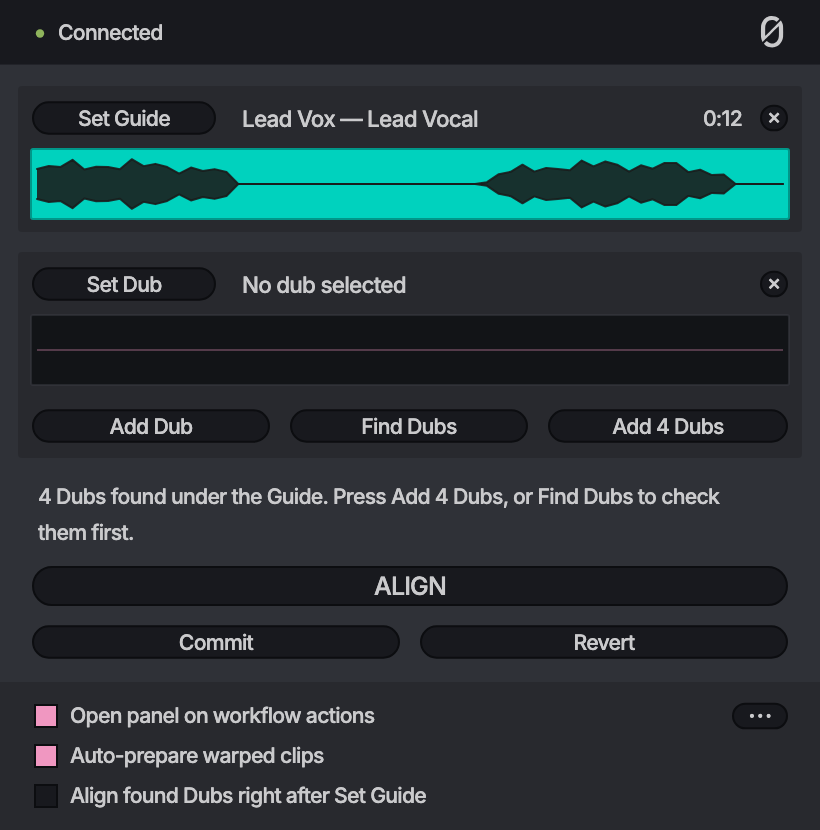
Right after Set Guide, the panel may already offer the clips it found, with an Add Dubs button beside Find Dubs.
Add Dub
Select a clip in Live and press Add Dub to add it to the Dubs you already have.
ALIGN, Commit and Revert with several Dubs
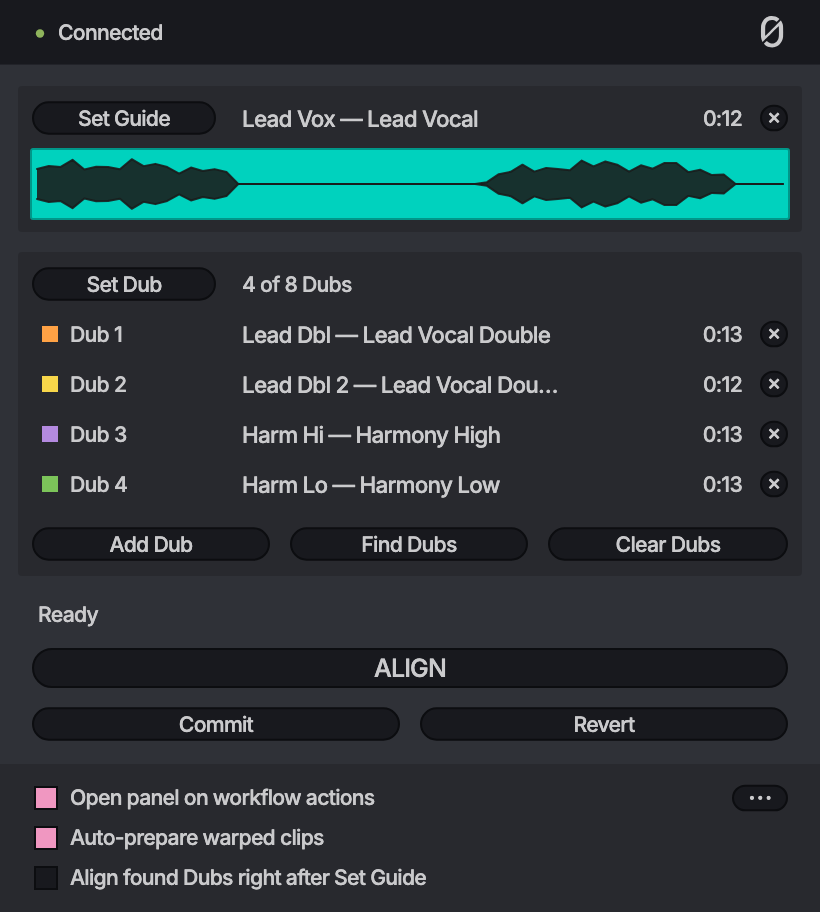
Press ALIGN: VocAlign opens with the Guide and every Dub. Align them in VocAlign as usual. Commit puts each aligned Dub back on its own track, with its vocal chain intact, and Revert puts all of them back. If you move a Dub in Live after adding it, Commit changes nothing and says which clip moved: add it again, then press Commit.
Clear one Dub or all of them
The × next to a Dub clears only that Dub. Clear Dubs clears all of them; the Guide stays set.
Remembered tracks
After a Commit in a saved Set, null.audio remembers which tracks held the Dubs for that Guide track. The next time you press Set Guide on a clip on that track, it offers and ticks the clips on those tracks.
Align found Dubs right after Set Guide
The third checkbox at the bottom of the panel turns a stack of doubles into one press. Tick Align found Dubs right after Set Guide, select the Guide in Live and press Set Guide: ALIGN adds the clips Find Dubs would tick (the remembered tracks first, then the vocal tracks under the Guide) and opens VocAlign with all of them. Check them in VocAlign; nothing in Live changes until you press Commit. A stretched warped clip is left out, as in Find Dubs: add it with Add Dub.
With the checkbox off, you get the same in two presses: press Set Guide, then ALIGN without setting a Dub. If no clip under the Guide would be ticked, the panel says so; set a Dub or use Find Dubs instead.
Still stuck? Write to contact@null.audio. In null.audio, Troubleshooting → Copy support report puts everything we need on your clipboard.