EDIT opens a clip from Live's Arrangement in Melodyne or another compatible editor, and lets you hear every edit in the Live mix while you work. You work on the EDIT panel in Live. Press Open EDIT on the null.audio device to open it.
Before you start
Add the null.audio EDIT Bridge plug-in to the track of the clip you want to edit (see Install null.audio). Choose your editor in the EDITOR menu on the EDIT panel.
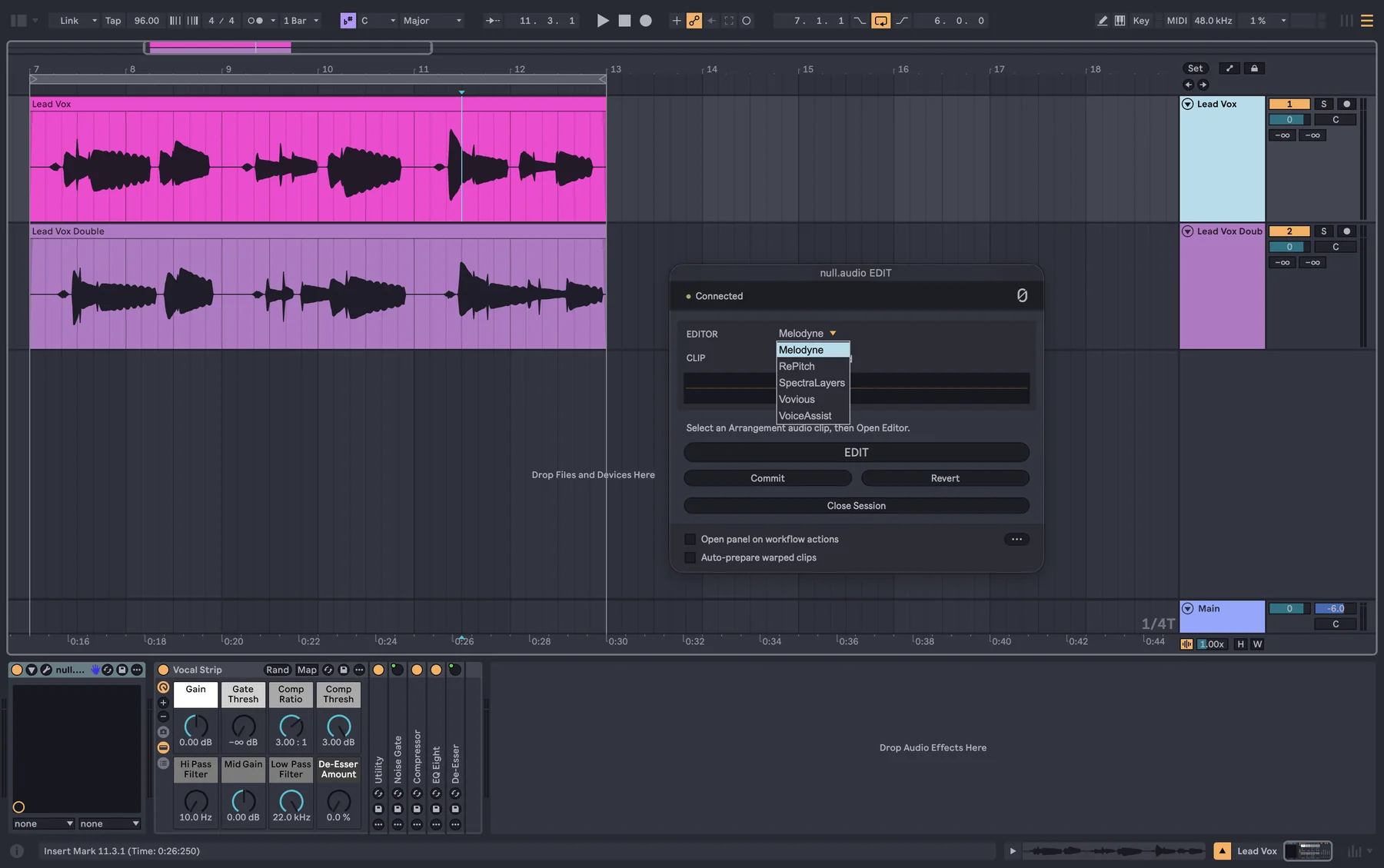
Put the EDIT Bridge first on the track
Place the EDIT Bridge before your vocal chain: first on the track, ahead of your EQ, compressor, de-esser and other effects. Then:
- You hear every edit through your whole vocal chain, in real time, exactly as it will sound in the mix.
- Commit doesn't bake your chain into the clip. Only the edited audio is written back; your effects stay live on the track, so you can keep adjusting them.
If the Bridge sits after your effects, you hear the edit without them.
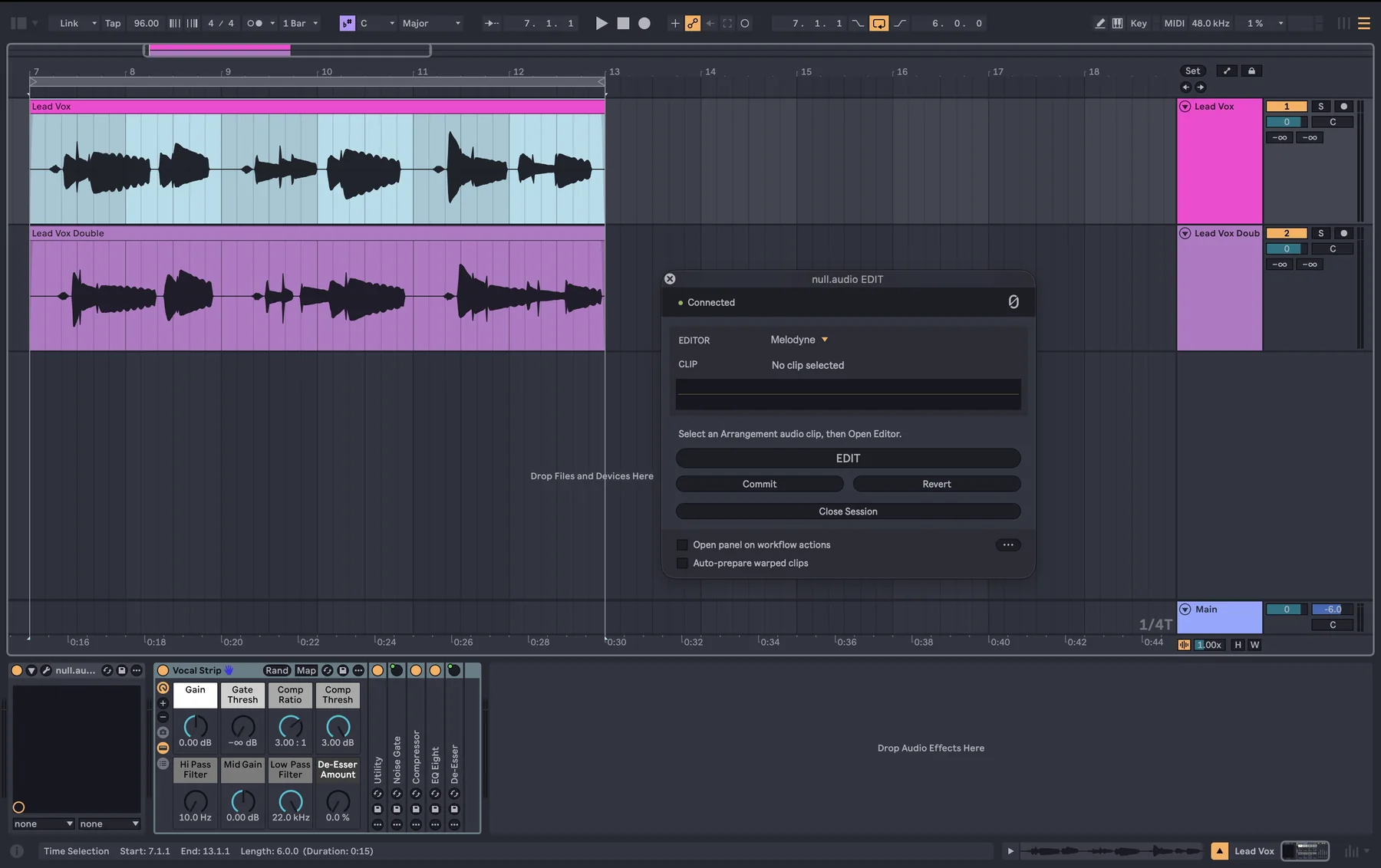
1. Select the clip and press EDIT
In Live's Arrangement, select the audio clip, then press EDIT on the EDIT panel. The clip opens in your editor.
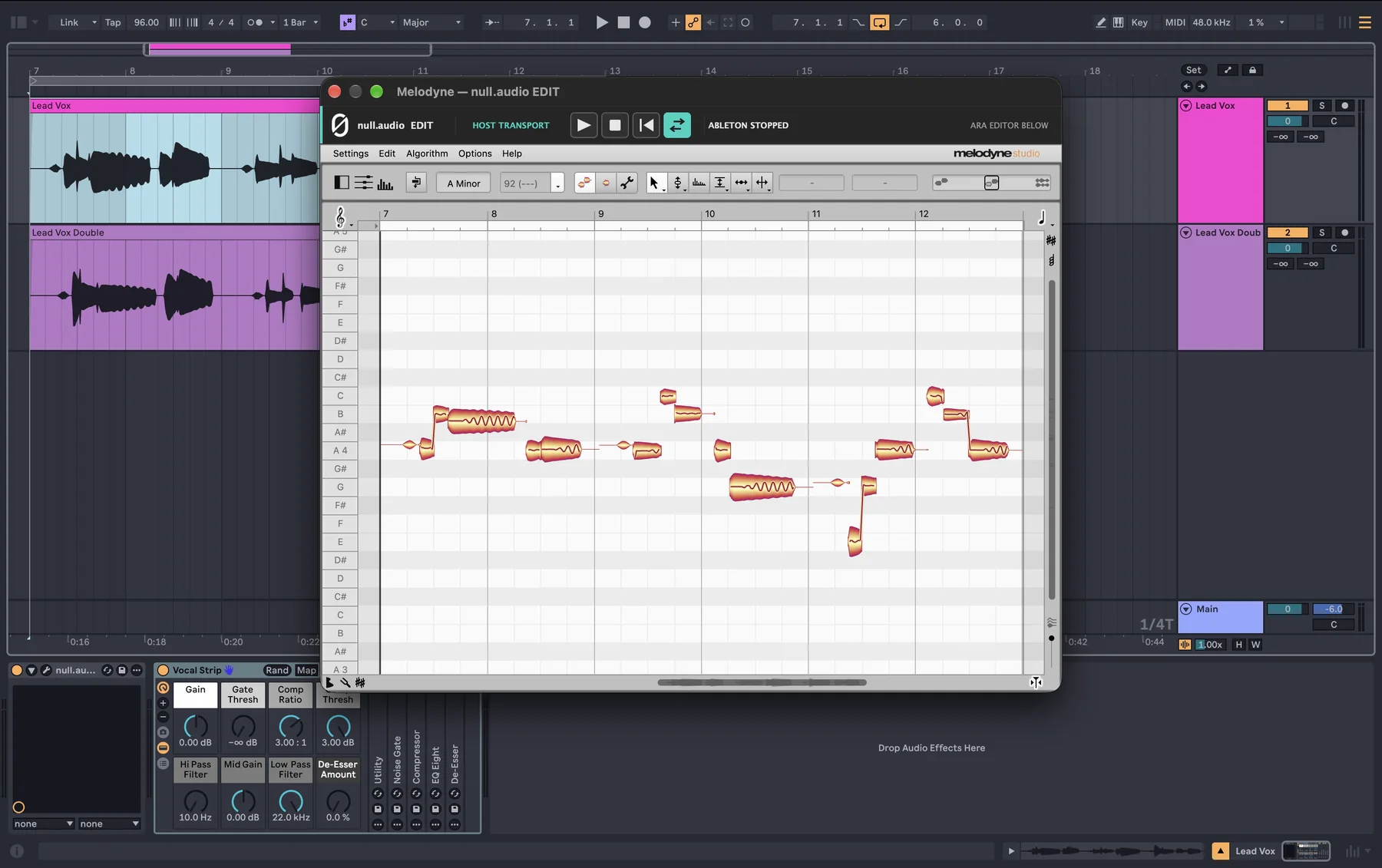
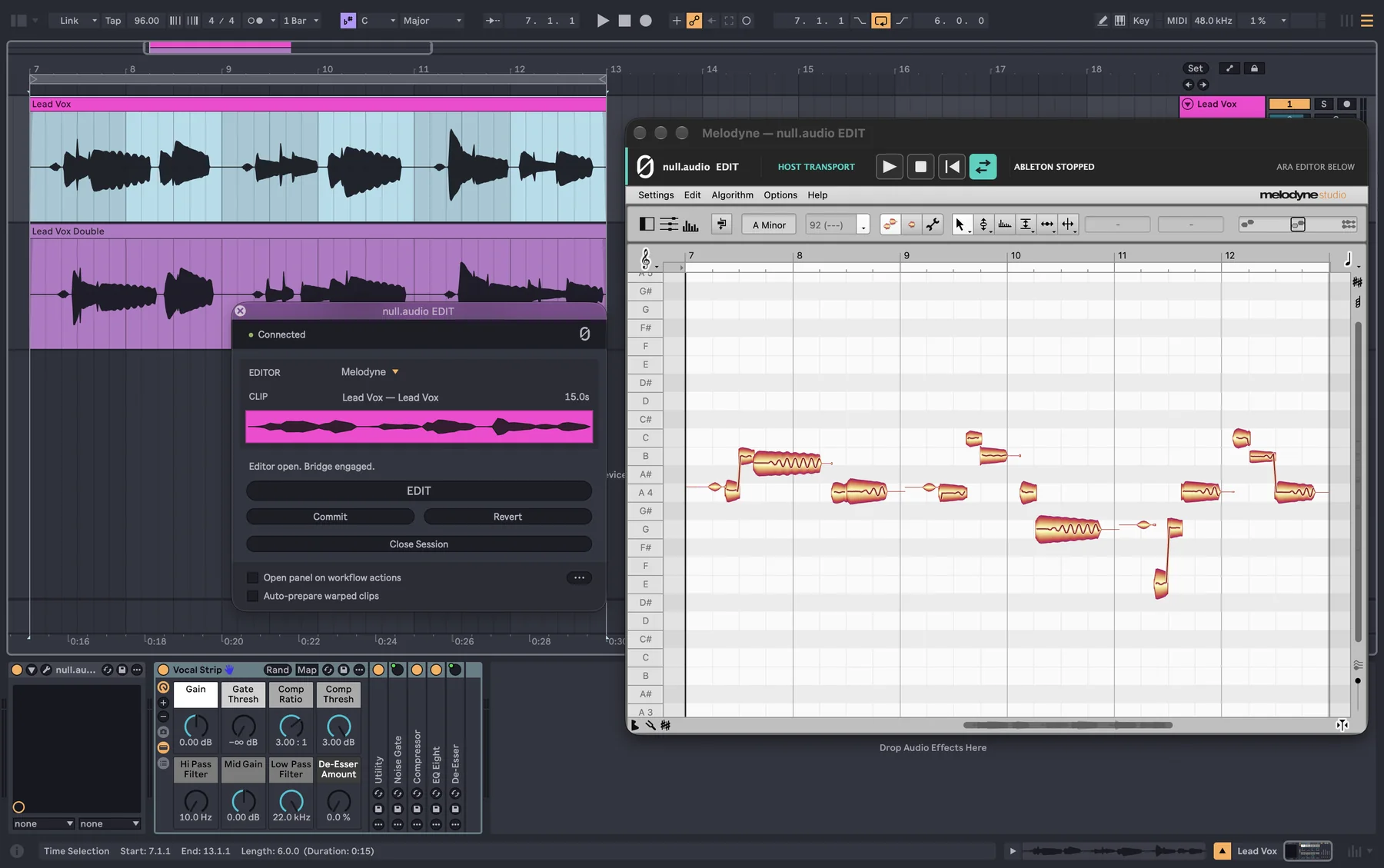
2. Hear every edit in the mix
Press play in Live. The EDIT Bridge on the track plays your edit with the rest of the Live mix, in real time, while the editor stays open, and through the vocal chain after it. Its window shows what it is doing:
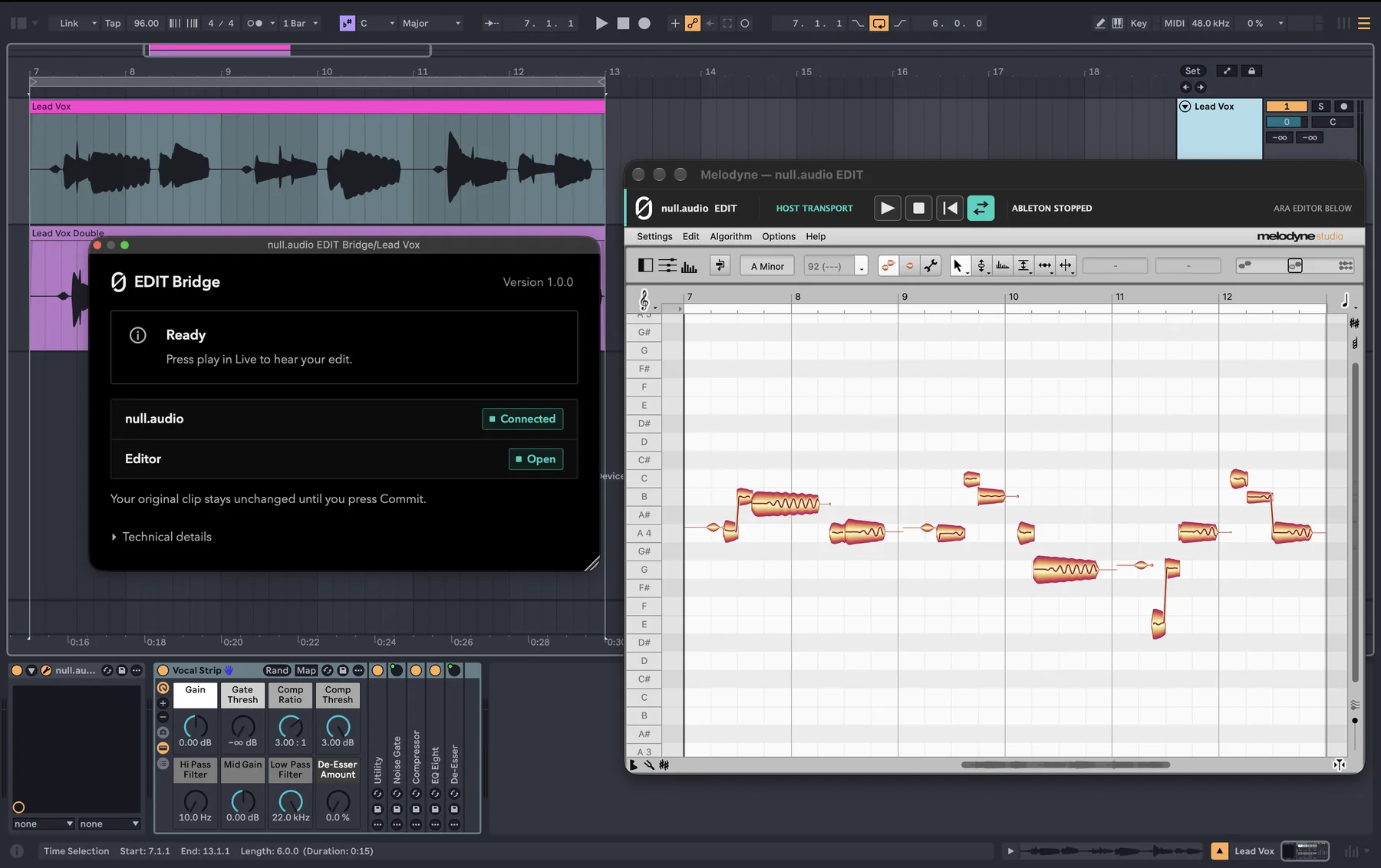
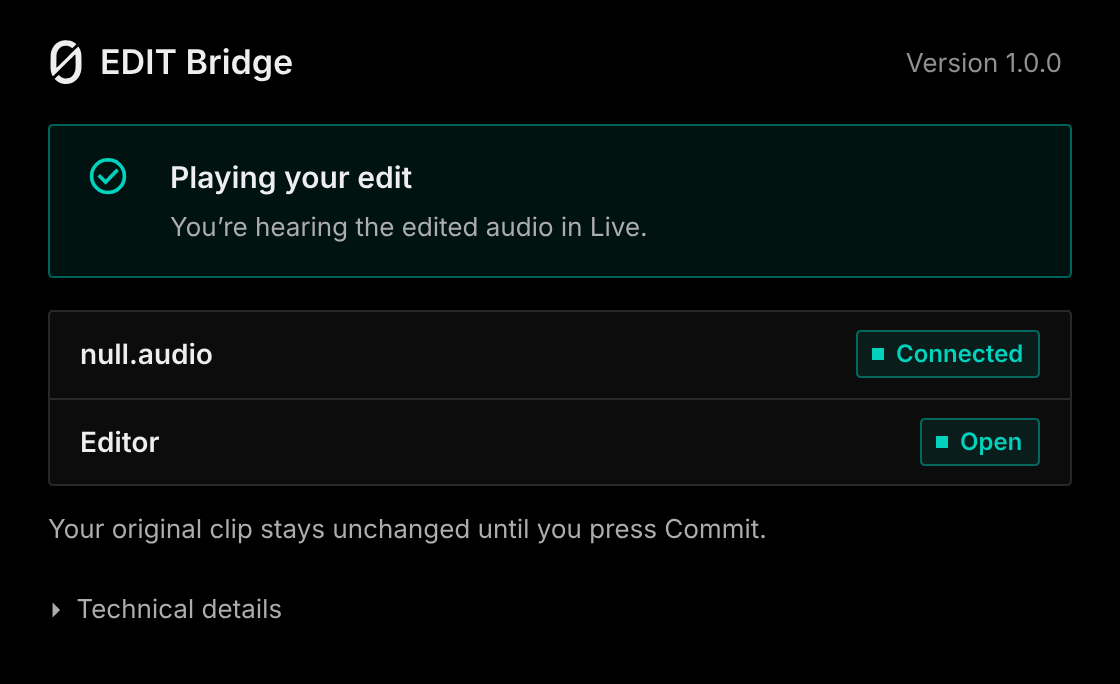
Your original clip stays unchanged until you press Commit.
3. Commit only the edited clip
Press Commit. Only the edited clip goes back to Arrangement View. Your vocal chain isn't rendered into it; it stays on the track as before.
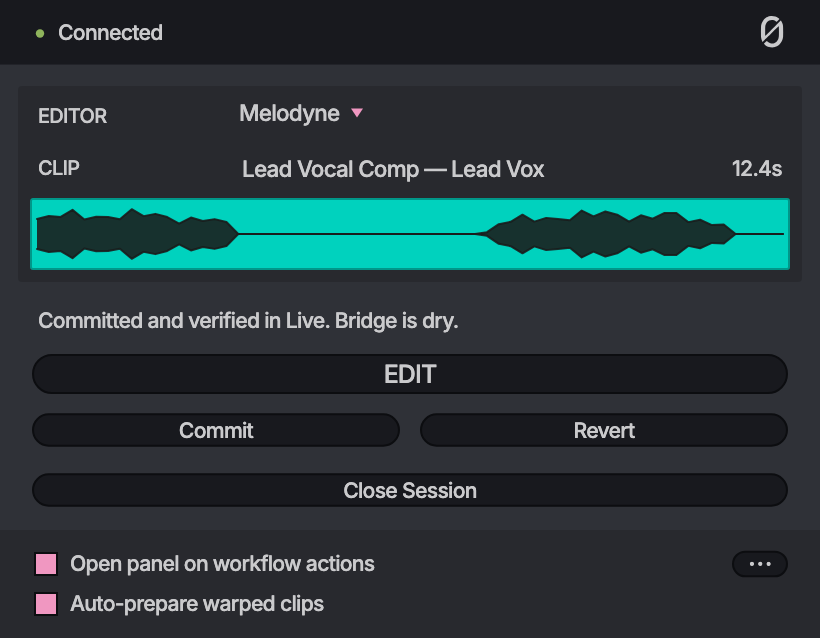
Close the session
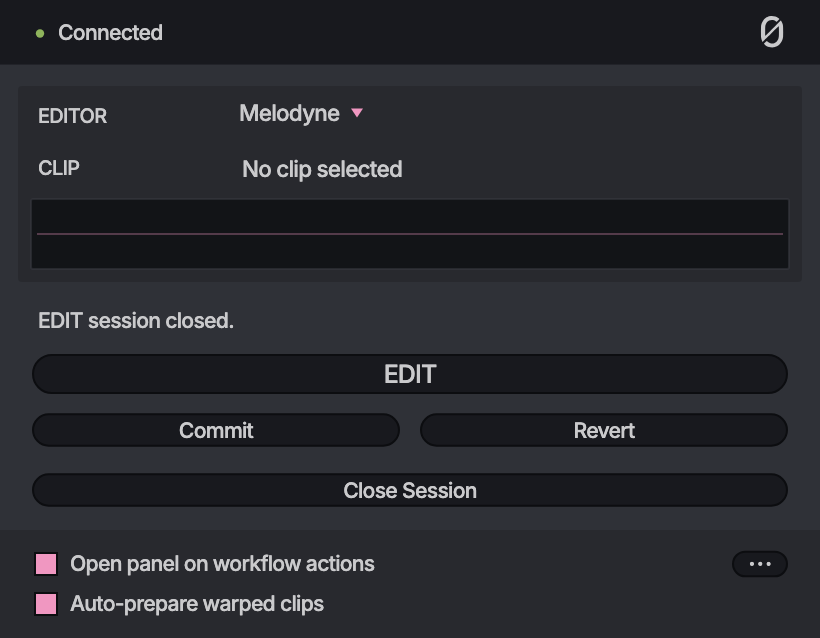
Close Session closes the clip in the editor. To only hide the EDIT panel, use its window's close box.
Still stuck? Write to contact@null.audio. In null.audio, Troubleshooting → Copy support report puts everything we need on your clipboard.