Start with Troubleshooting in null.audio. It lists problems first, each with what to do. When everything works, it says so:
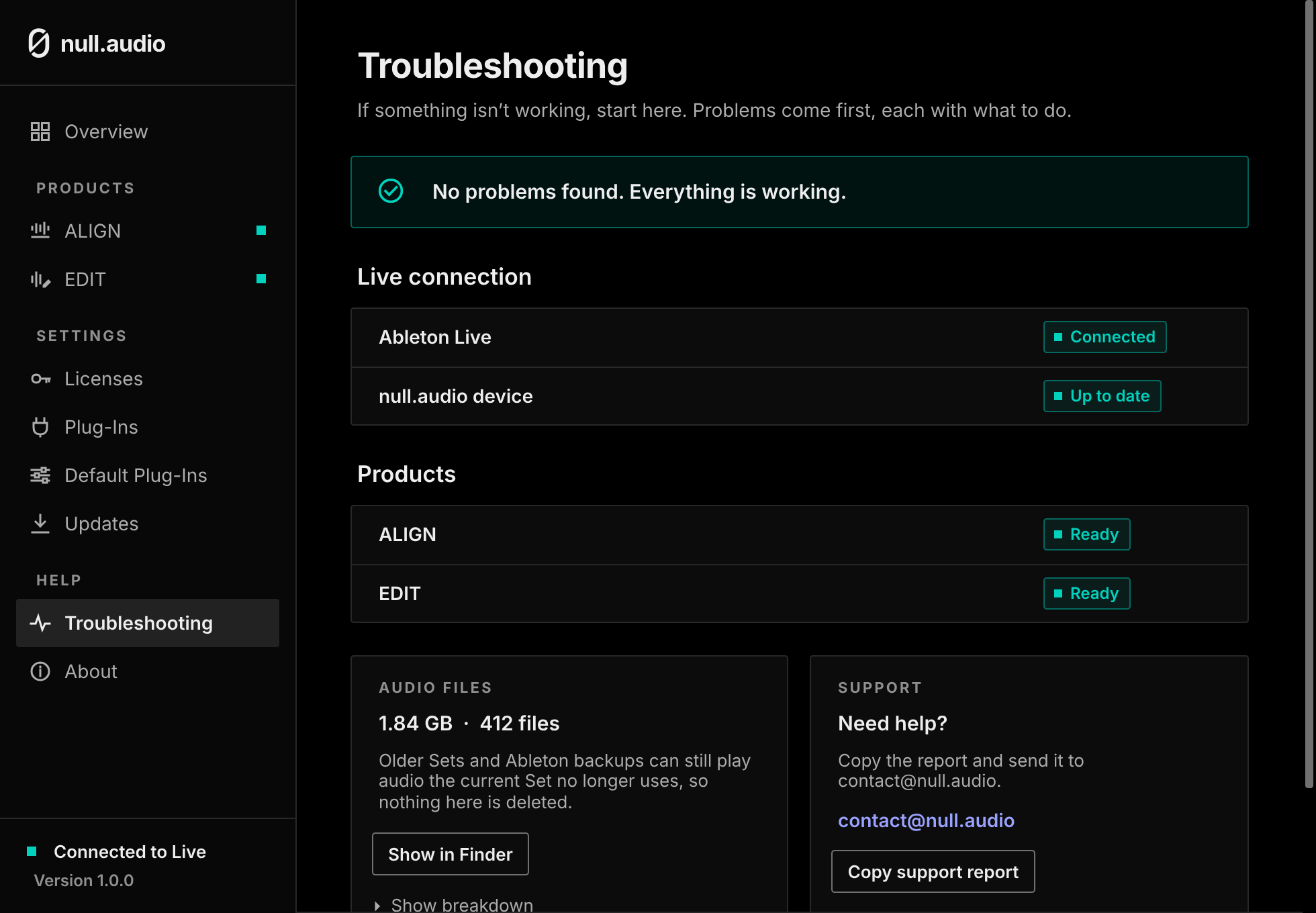
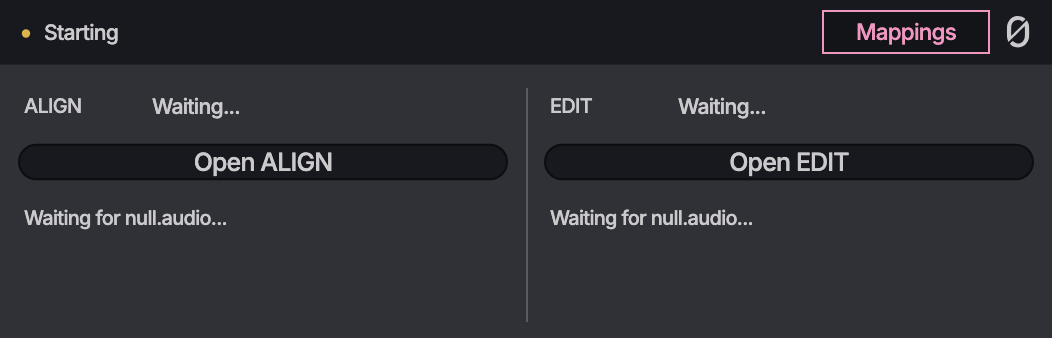
The device says "Waiting for null.audio..."
null.audio isn't open, or the device can't reach it. Open null.audio. The device connects on its own.
Windows or your browser warns about the installer
The installer is new, and Windows and browsers warn about files they have seen only a few times. That warning goes away as more people install null.audio.
- If your browser asks, keep the download.
- If Windows shows "Windows protected your PC", click More info. The publisher must read Jan Rothmann. Then click Run anyway.
If the publisher reads "Unknown publisher", don't run the file. Download it again from null.audio/download, or email me.
Two user accounts on one computer
null.audio works in one user account at a time. If another account on this computer is still signed in with null.audio open, the device can connect to that account's null.audio, and EDIT can say "Permission denied". Quit null.audio in the other account and sign out of it, then restart your computer and use null.audio in one account.
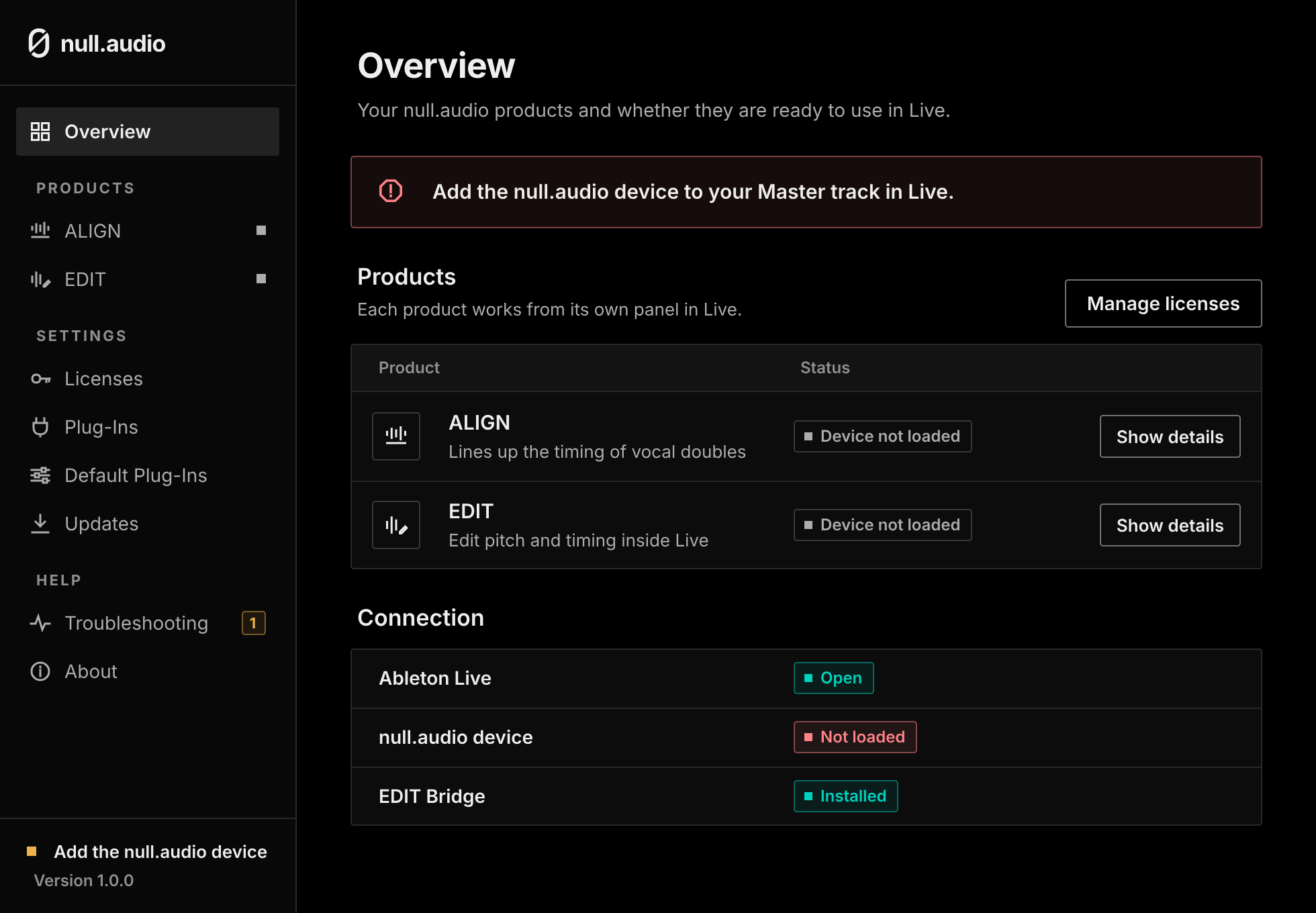
null.audio says "Add the null.audio device to your Master track in Live."
Live is open, but the device isn't loaded. Add it to your Master track (see Install null.audio).
ALIGN or EDIT needs a plug-in
ALIGN works with VocAlign 7 Pro or Standard and VocAlign 6 Pro, and on macOS also VocAlign 6 Standard. If null.audio doesn't find one, install it, then press Search for Plug-Ins on the Plug-Ins page.
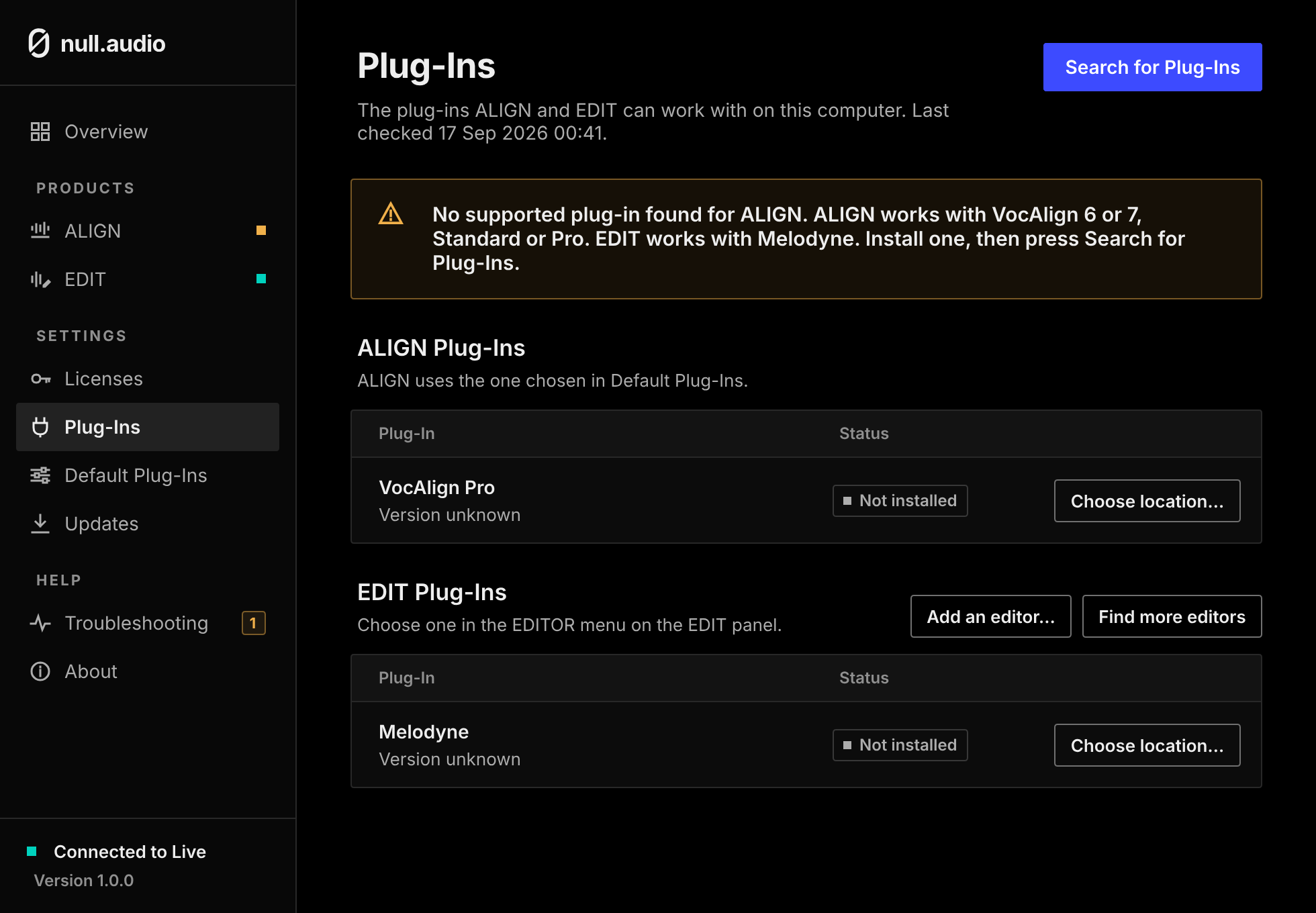
If a plug-in is listed as Won't open, or null.audio found the wrong copy, press Choose location… and pick the plug-in yourself.
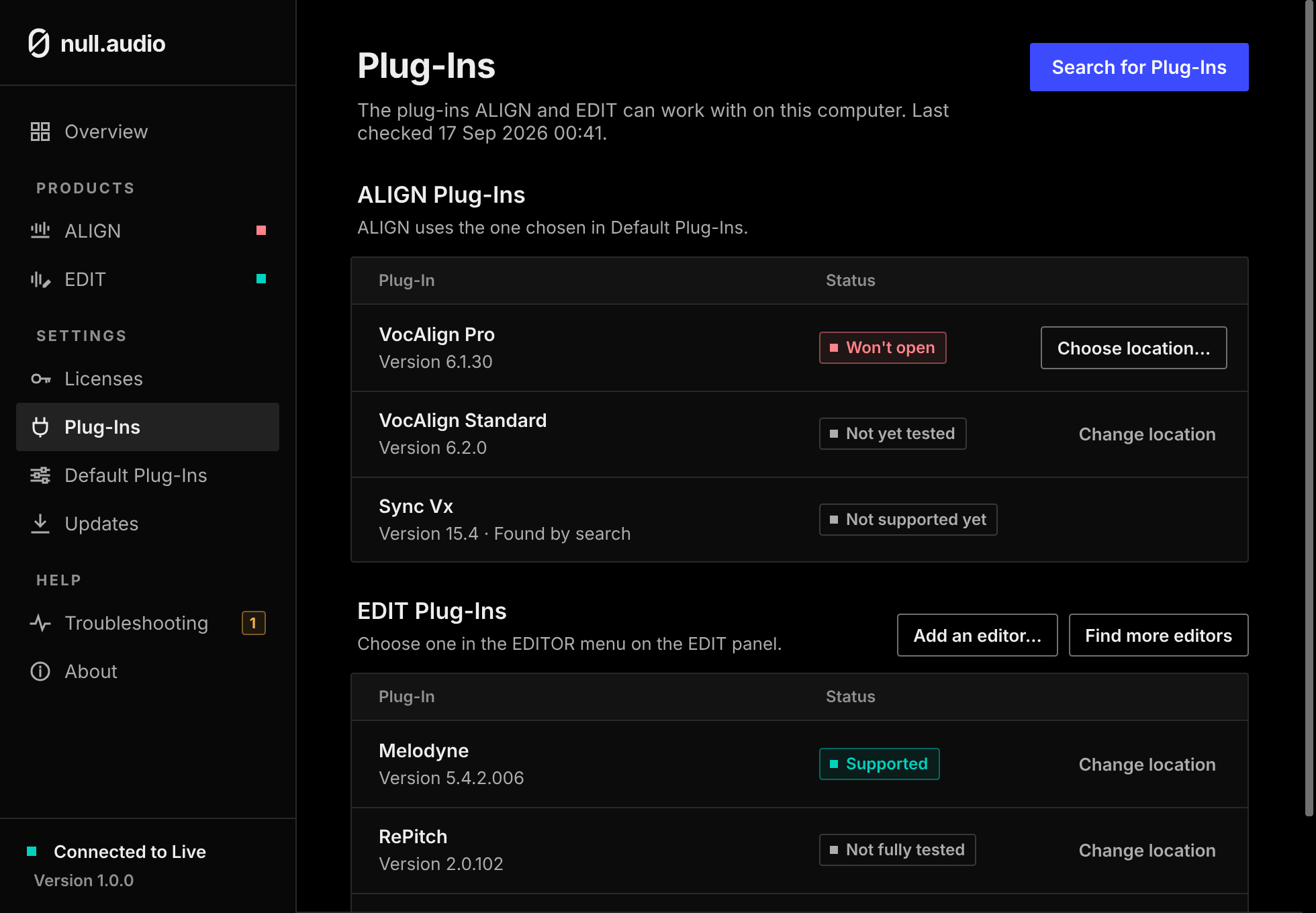
EDIT needs the EDIT Bridge
"EDIT needs the EDIT Bridge, a small plug-in that lets you hear your edits in Live. Install it, then restart Live." The installer installs it; if it is missing, run the installer again.
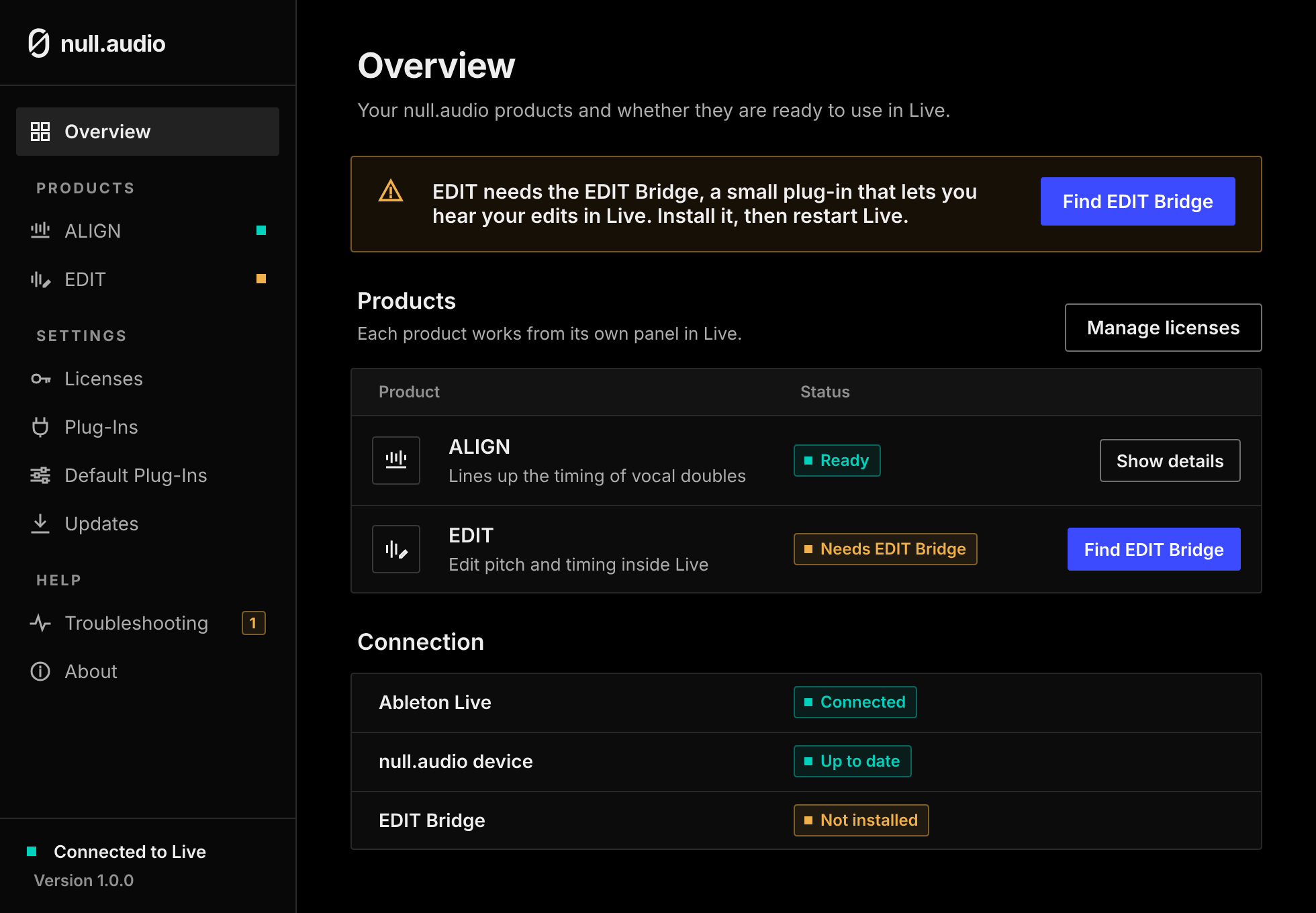
What the EDIT Bridge window says
| The window says | What to do |
|---|---|
| No clip open | Select an audio clip in Live's Arrangement, then open it on the EDIT panel. |
| Getting ready | Wait: the editor is opening for this clip. |
| Ready | Press play in Live to hear your edit. |
| Standby | EDIT is working on another track. To hear edits here, open a clip from this track in EDIT. |
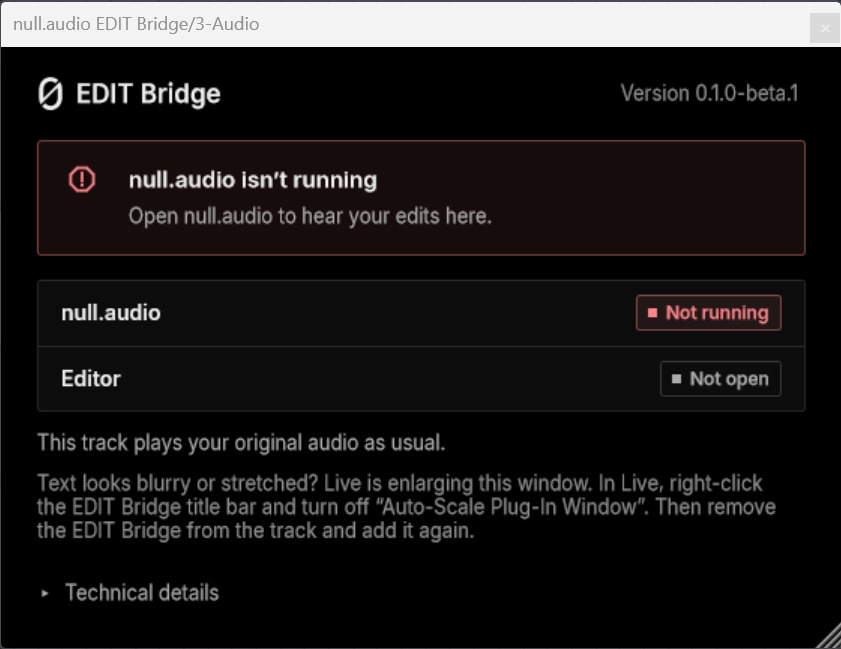
| null.audio isn't running | Open null.audio to hear your edits here. |
| Can't reach null.audio | Quit and reopen null.audio, then try again. |
| Another EDIT Bridge is in use | Only one EDIT Bridge plays edits at a time. Remove the extra one from this track. |
| Update needed | This EDIT Bridge and null.audio are different versions. Install the latest null.audio, then restart Live. |
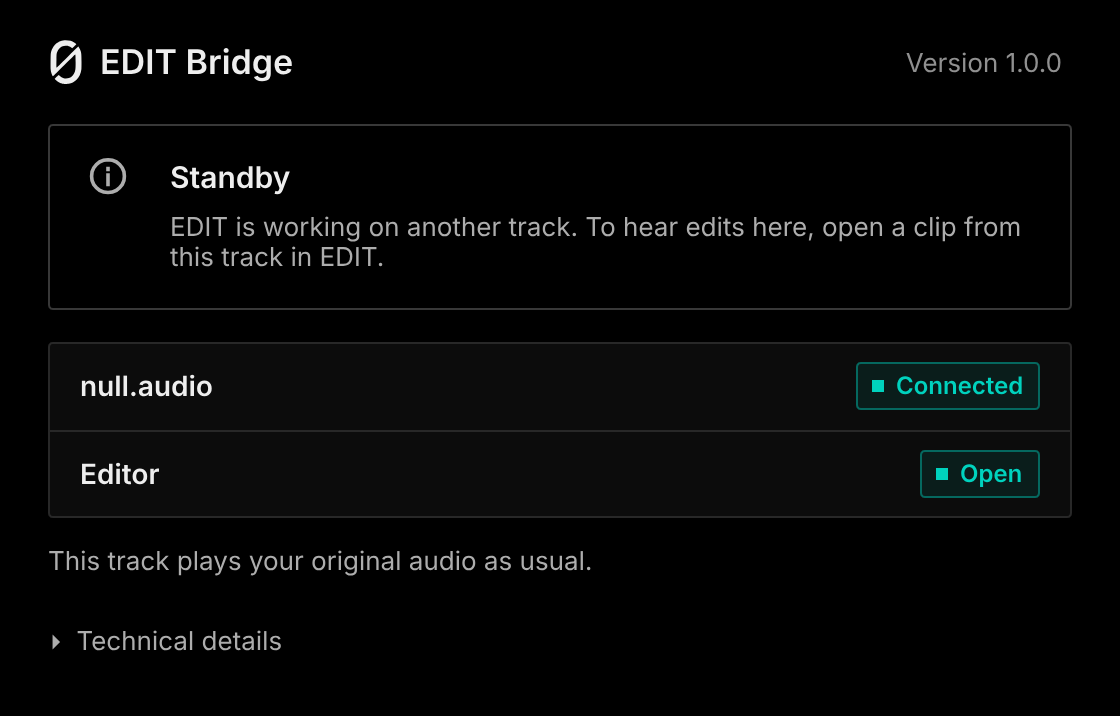
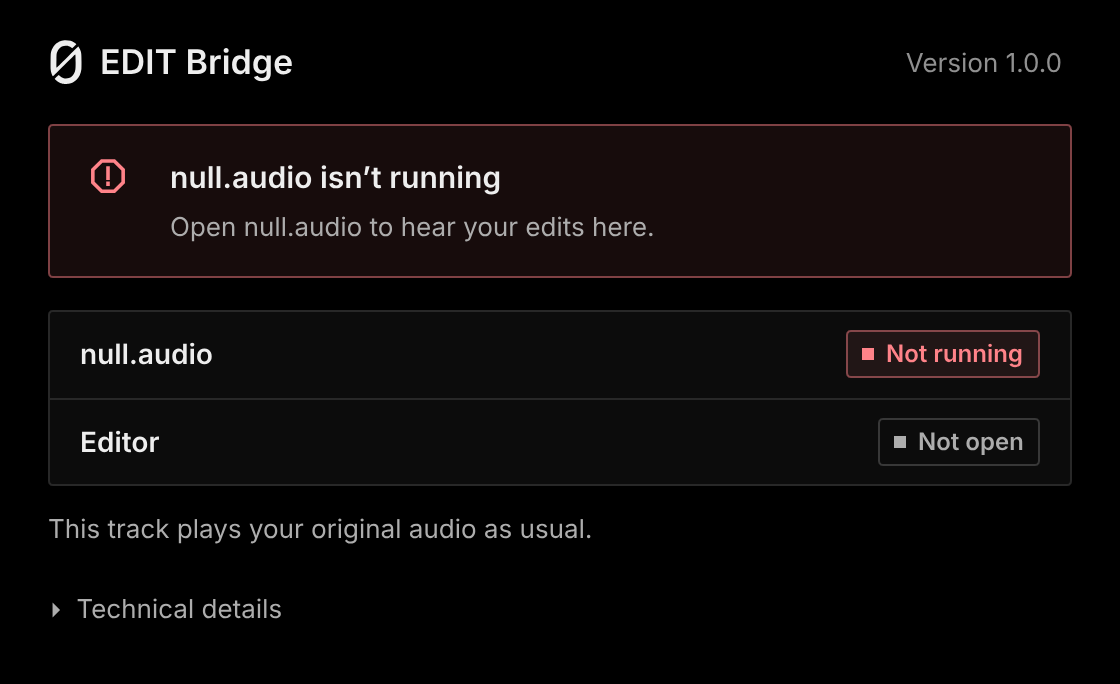
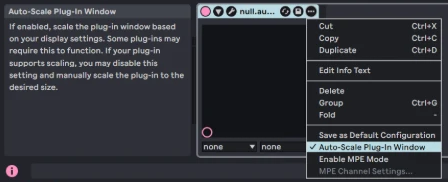
On Windows, if the EDIT Bridge window looks blurry or stretched, Live is enlarging it. In Live, right-click the EDIT Bridge title bar and turn off "Auto-Scale Plug-In Window". Then remove the EDIT Bridge from the track and add it again.
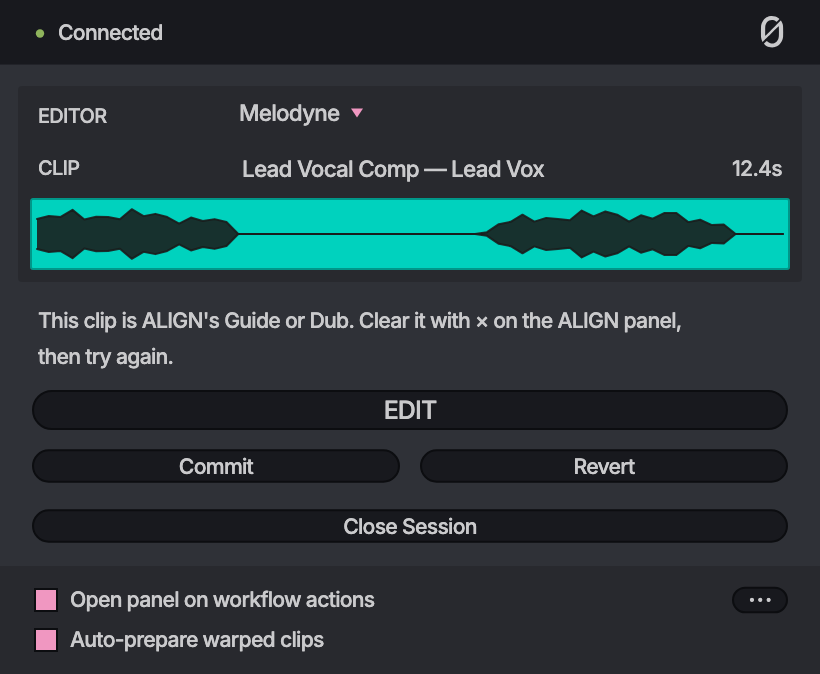
"This clip is ALIGN's Guide or Dub."
EDIT can't open a clip that ALIGN is using. Clear it with × on the ALIGN panel, then try again.
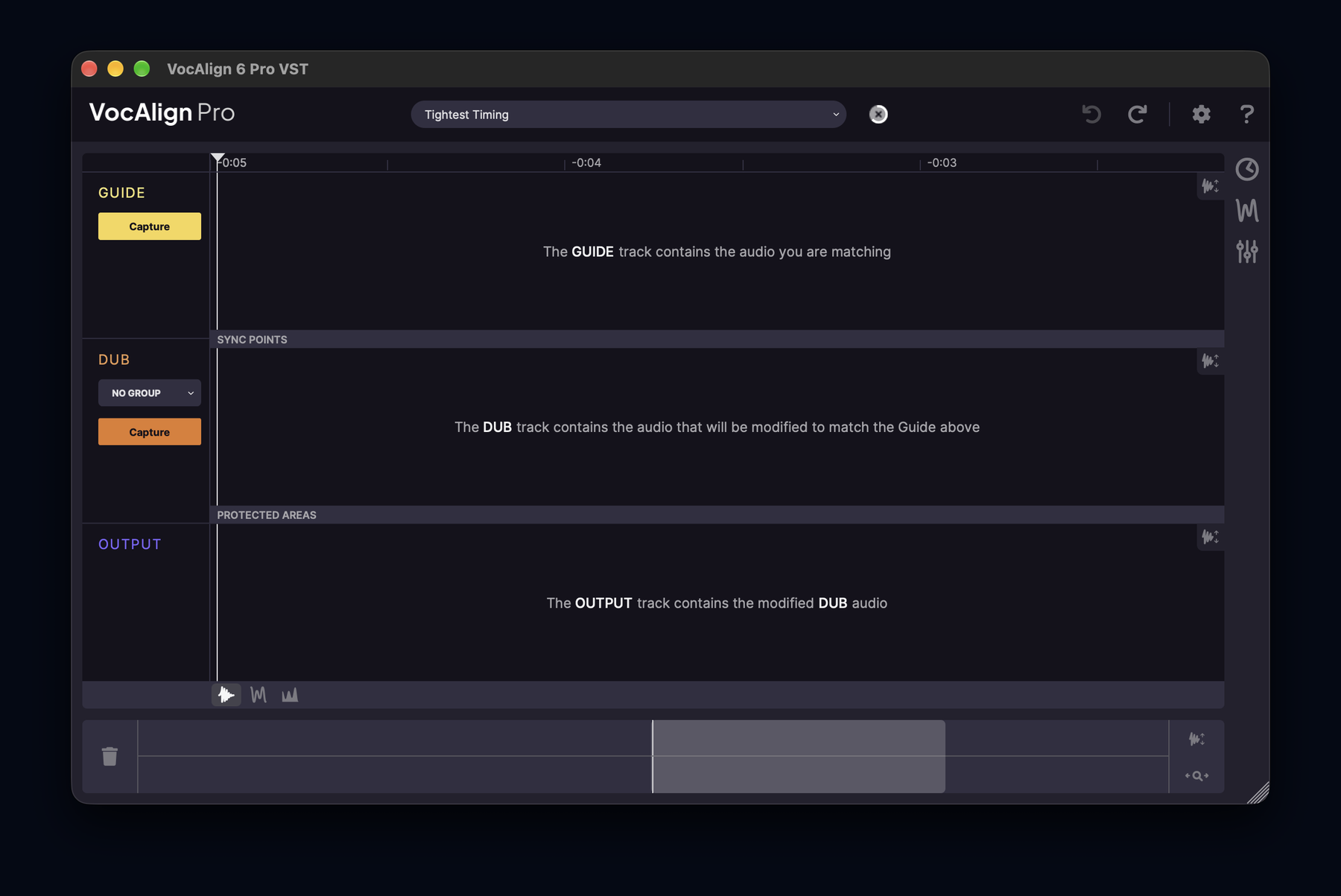
VocAlign opens with empty lanes
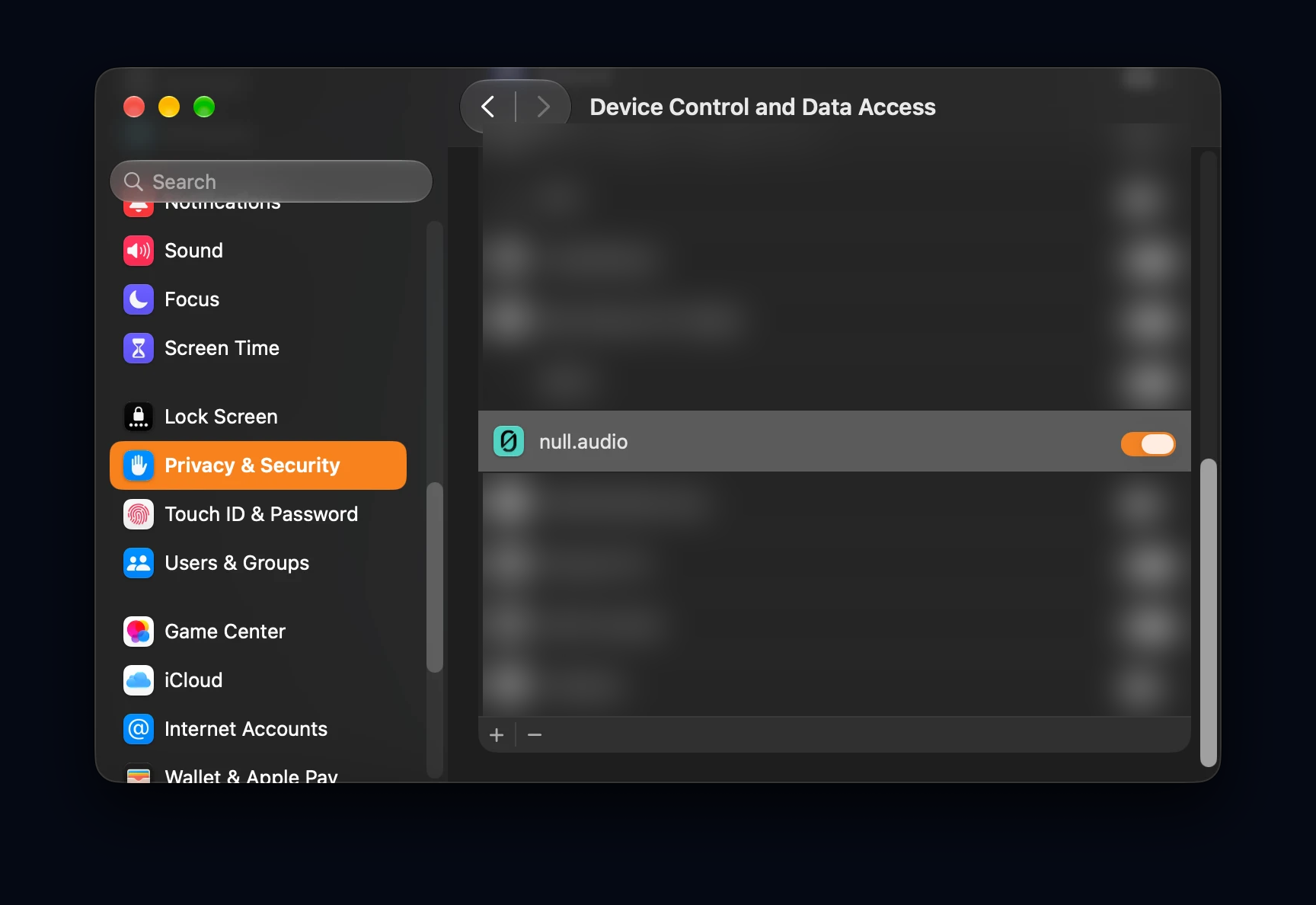
Press Capture Guide and Capture Dub in VocAlign once, then continue. On macOS you can also let null.audio press them for you: allow null.audio under System Settings → Privacy & Security → Accessibility (macOS 26 and earlier) or Device Control and Data Access (macOS 27 and later). The same permission is needed for Auto-prepare warped clips.
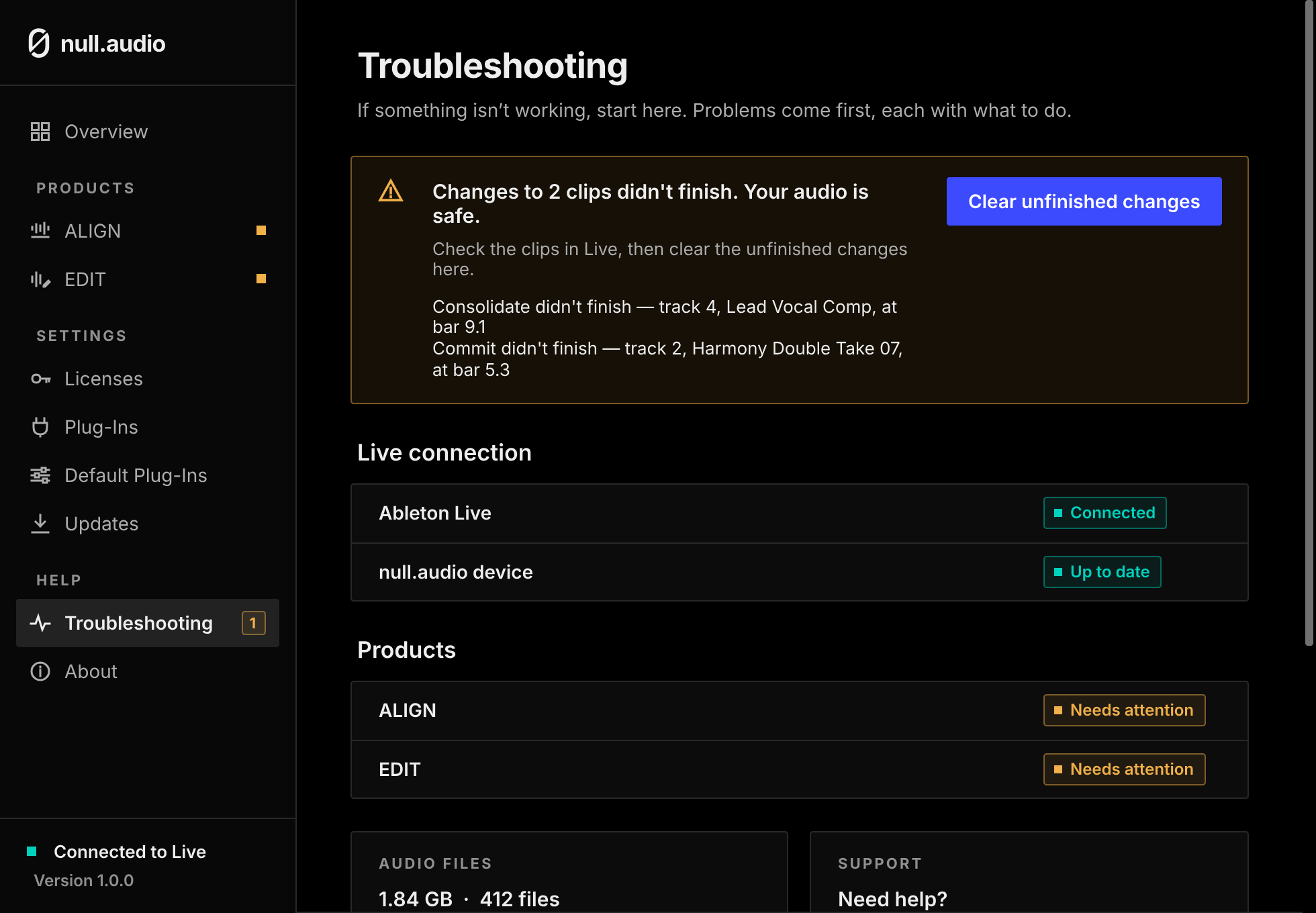
"Changes to clips didn't finish. Your audio is safe."
A Commit, Revert or Consolidate didn't finish, and null.audio couldn't confirm it. Your audio is safe. Check the clips in Live, then press Clear unfinished changes on the Troubleshooting page.
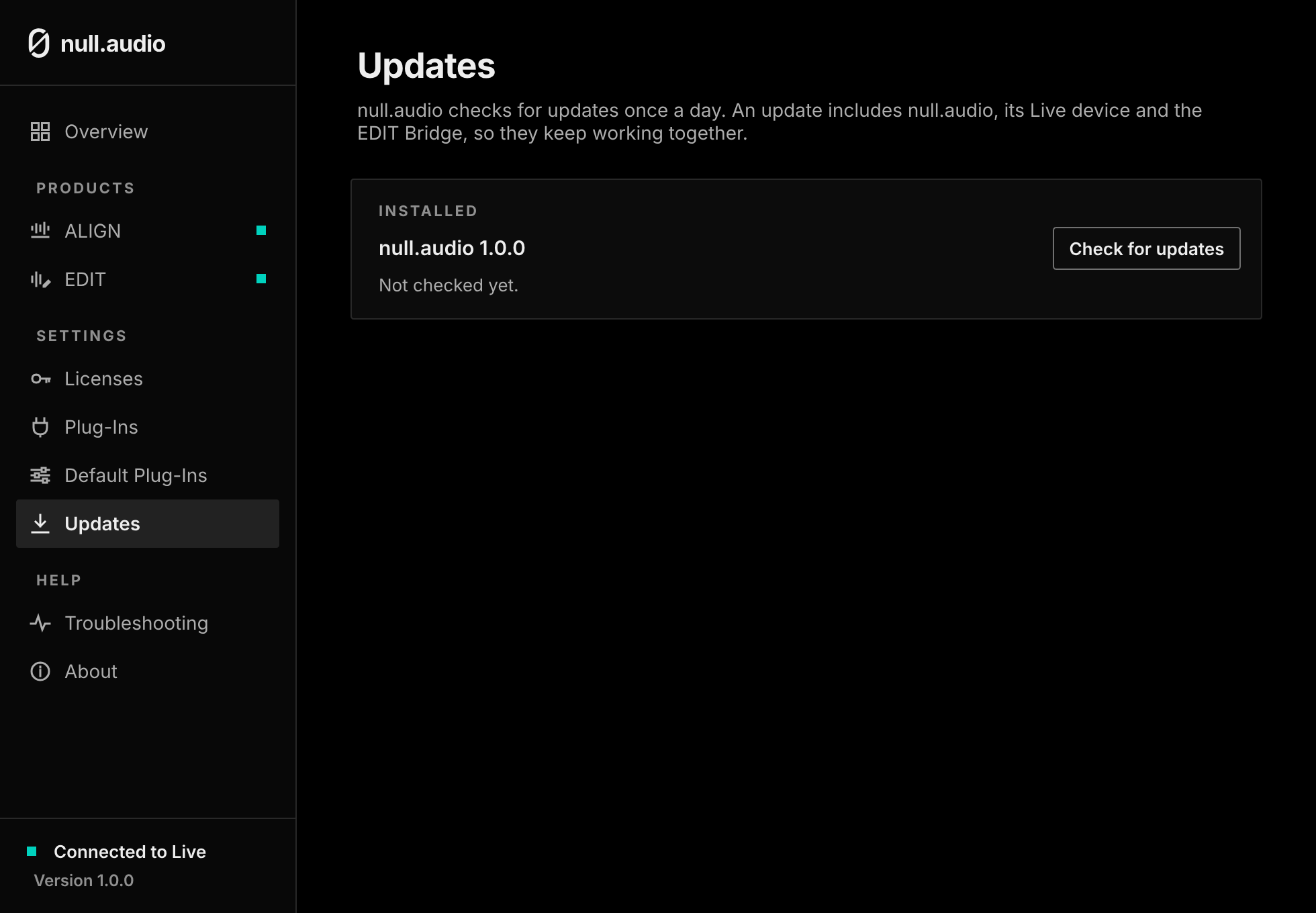
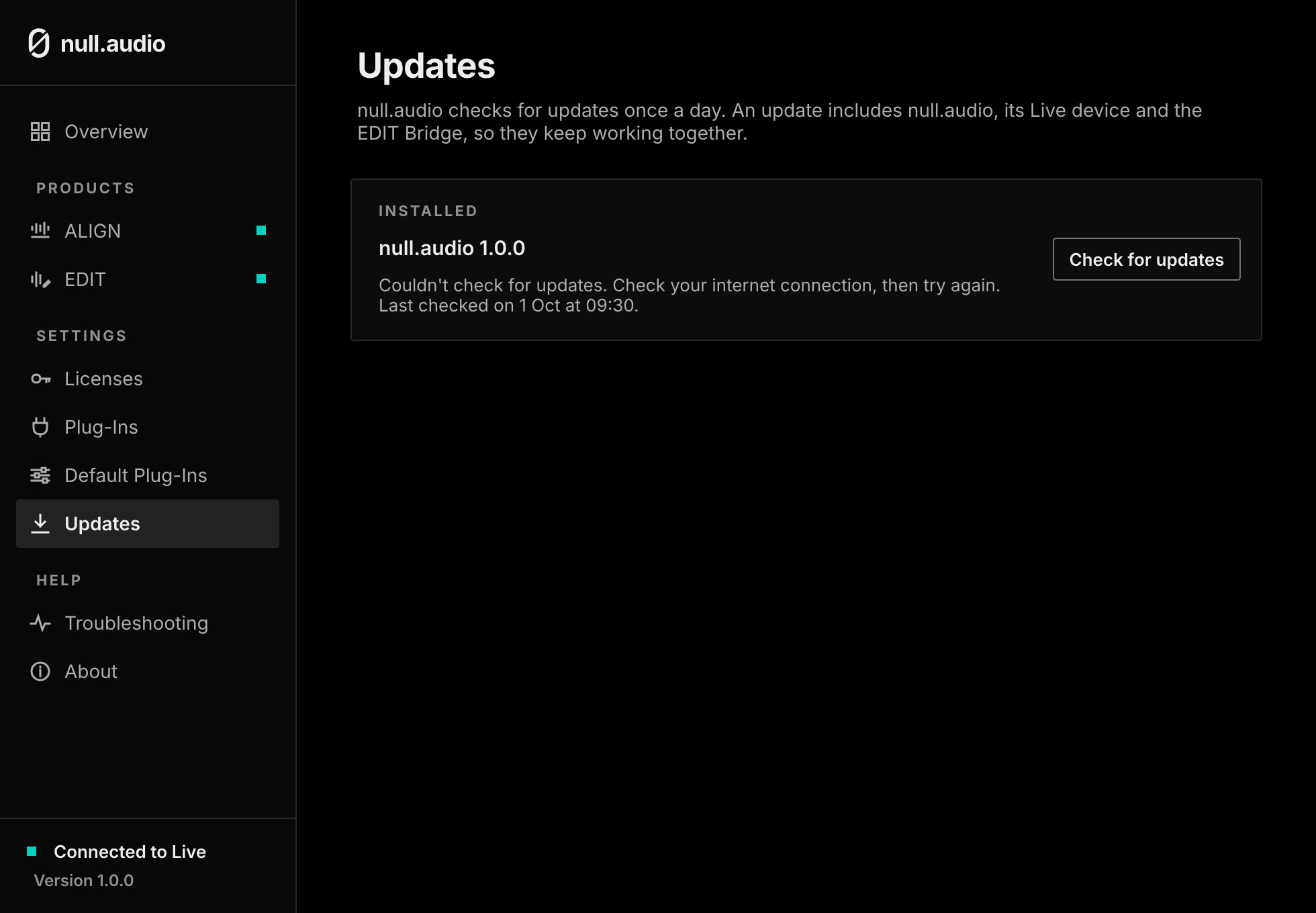
Updates
null.audio checks for updates once a day. An update includes null.audio, its Live device and the EDIT Bridge, so they keep working together. If it couldn't check, check your internet connection, then try again.
Send us a support report
On the Troubleshooting page, press Copy support report and send it to contact@null.audio. It tells us your versions and what null.audio saw.
Still stuck? Write to contact@null.audio. In null.audio, Troubleshooting → Copy support report puts everything we need on your clipboard.