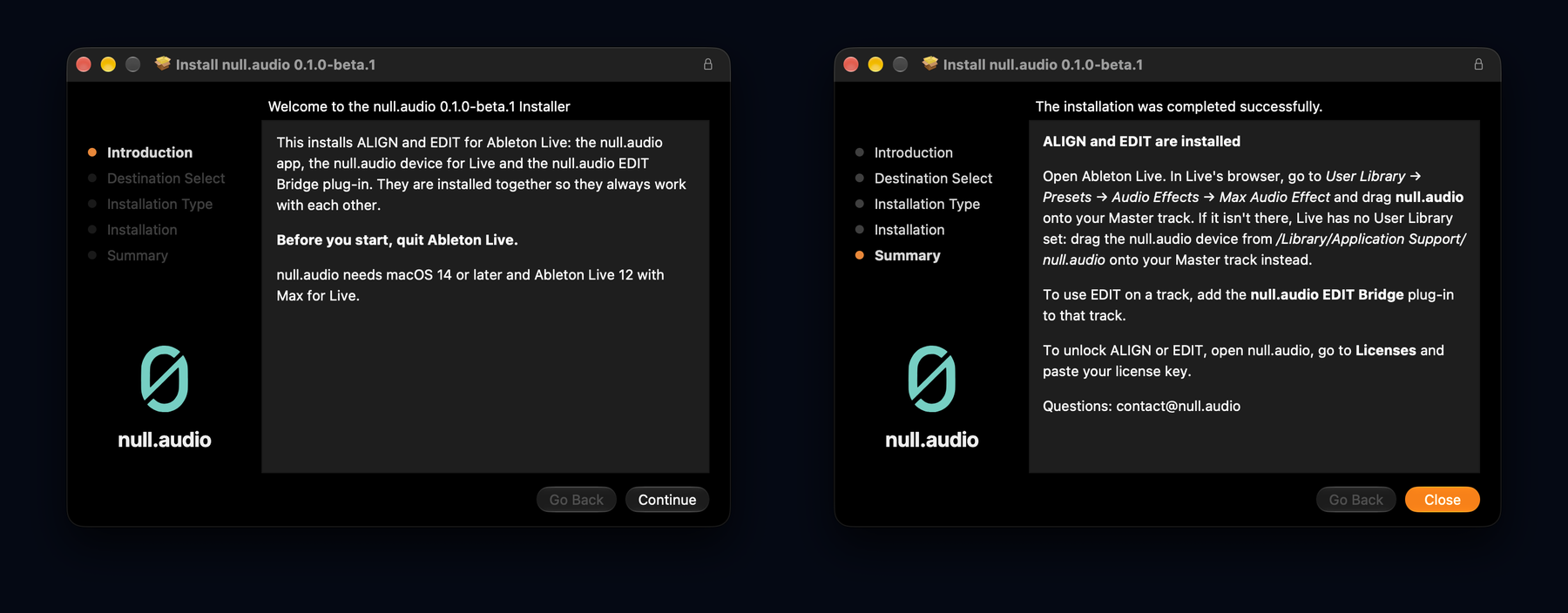
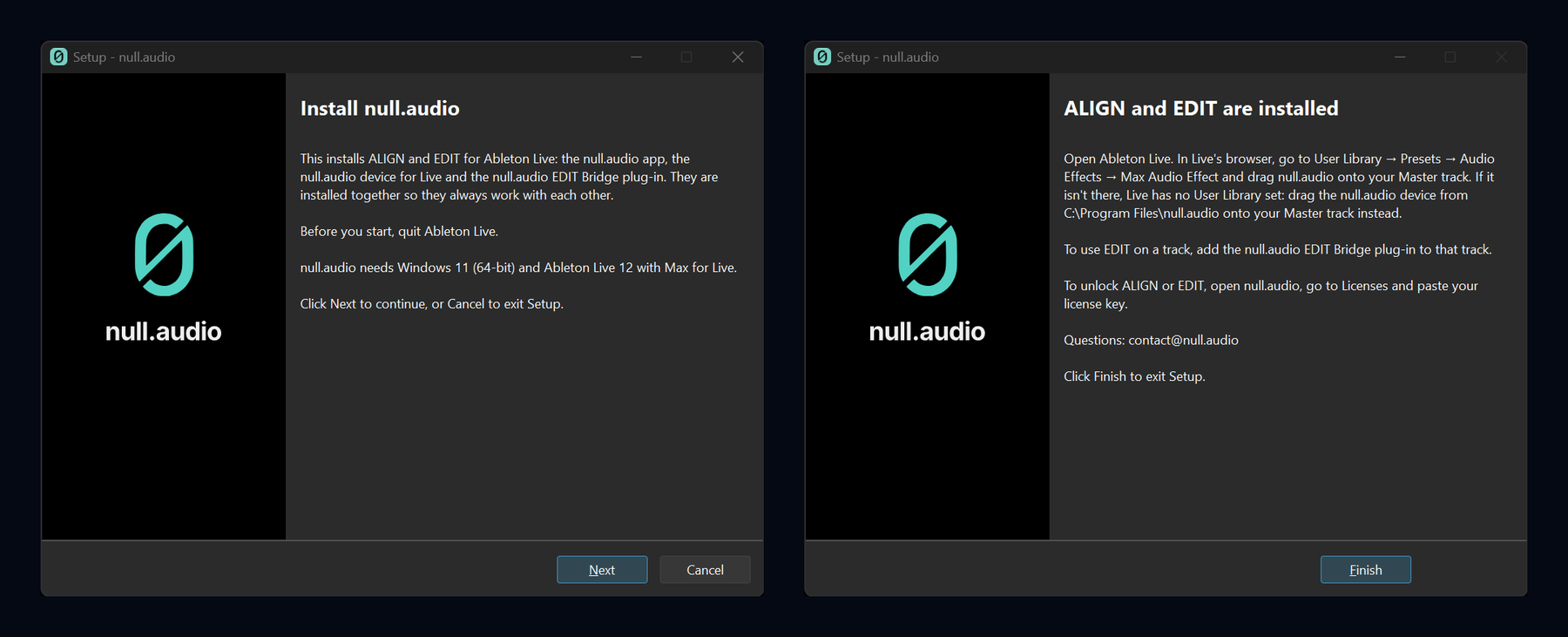
One installer puts everything in place: the null.audio app, the null.audio device for Live and the null.audio EDIT Bridge plug-in. They are installed together so they always work with each other.
What you need
- macOS 14 or later, or Windows 11 (64-bit).
- Ableton Live 12.3 or later: Live 12 Suite, or Live 12 Standard with the Max for Live add-on. On an older Live, the null.audio device says so and doesn't start.
- For ALIGN: VocAlign 7 Pro or Standard, or VocAlign 6 Pro; on macOS also VocAlign 6 Standard.
- For EDIT: a compatible editor. EDIT currently works with Melodyne, RePitch, SpectraLayers, Vovious and NoiseWorks VoiceAssist.
The plug-ins are not included. You need your own licence for them.
1. Run the installer
Download the installer for your computer from null.audio/download. Before you start, quit Ableton Live. Then open the installer and follow it to the end.
2. Add the device to your Master track
Open Ableton Live. In Live's browser, go to User Library → Presets → Audio Effects → Max Audio Effect and drag null.audio onto your Master track.
If it isn't there, Live has no User Library set: drag the null.audio device from
/Library/Application Support/null.audio (macOS) or C:\Program Files\null.audio (Windows) onto
your Master track instead.
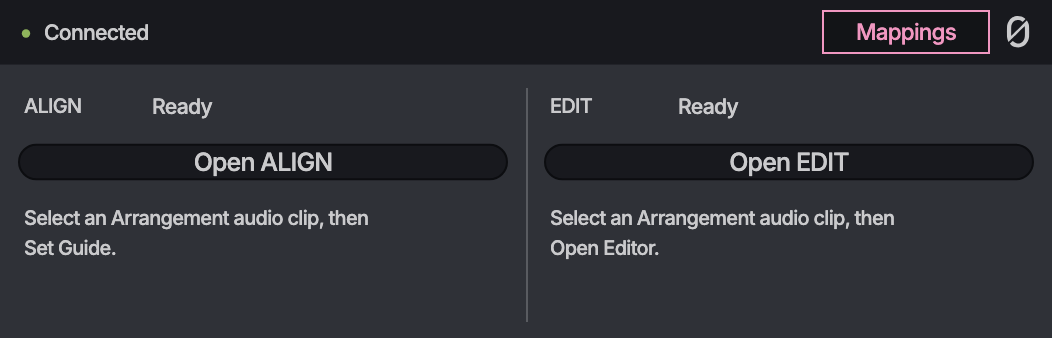
When the device has found null.audio, its top line reads Connected:
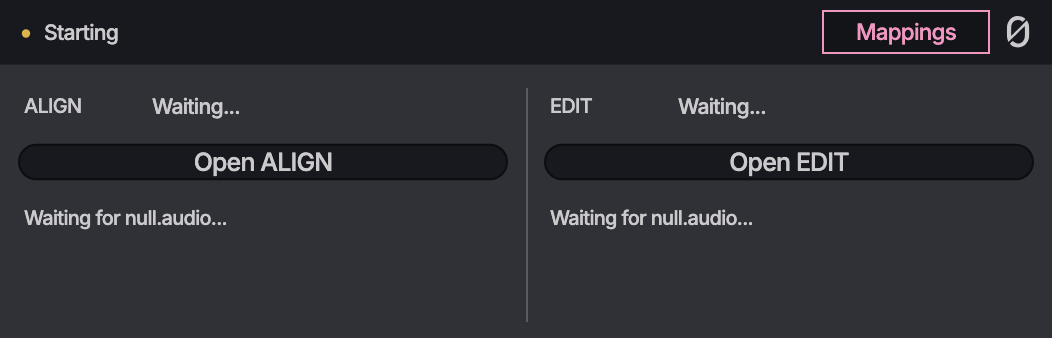
If it reads Waiting for null.audio..., open null.audio. The device connects on its own.
3. Add the EDIT Bridge for EDIT
To use EDIT on a track, add the null.audio EDIT Bridge plug-in to that track. The EDIT Bridge is the small plug-in on a clip's track that lets you hear edits in Live. ALIGN doesn't need it.
Put it first on the track, before your vocal chain. Then you hear every edit through your whole chain, and Commit writes back only the edited audio, without baking your effects into the clip.
Tip: have the EDIT Bridge on every new track. Add the EDIT Bridge to an empty audio track, right-click the track's header and choose Save as Default Audio Track. Every audio track you create from then on already has the EDIT Bridge on it.
4. Unlock ALIGN or EDIT
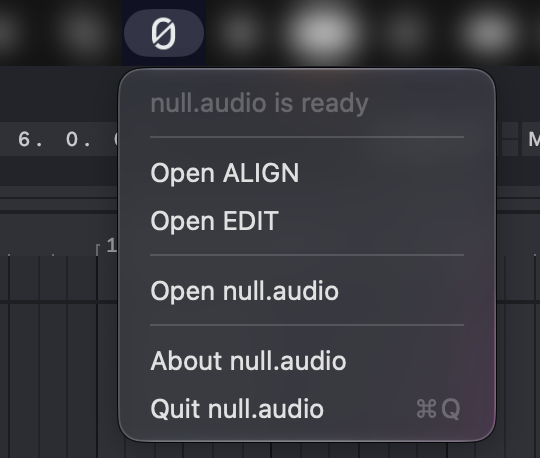
null.audio is the app in the menu bar. To open its window on macOS, click the null.audio icon in the menu bar and choose Open null.audio. On Windows, click its icon in the notification area; right-click it for the same menu.
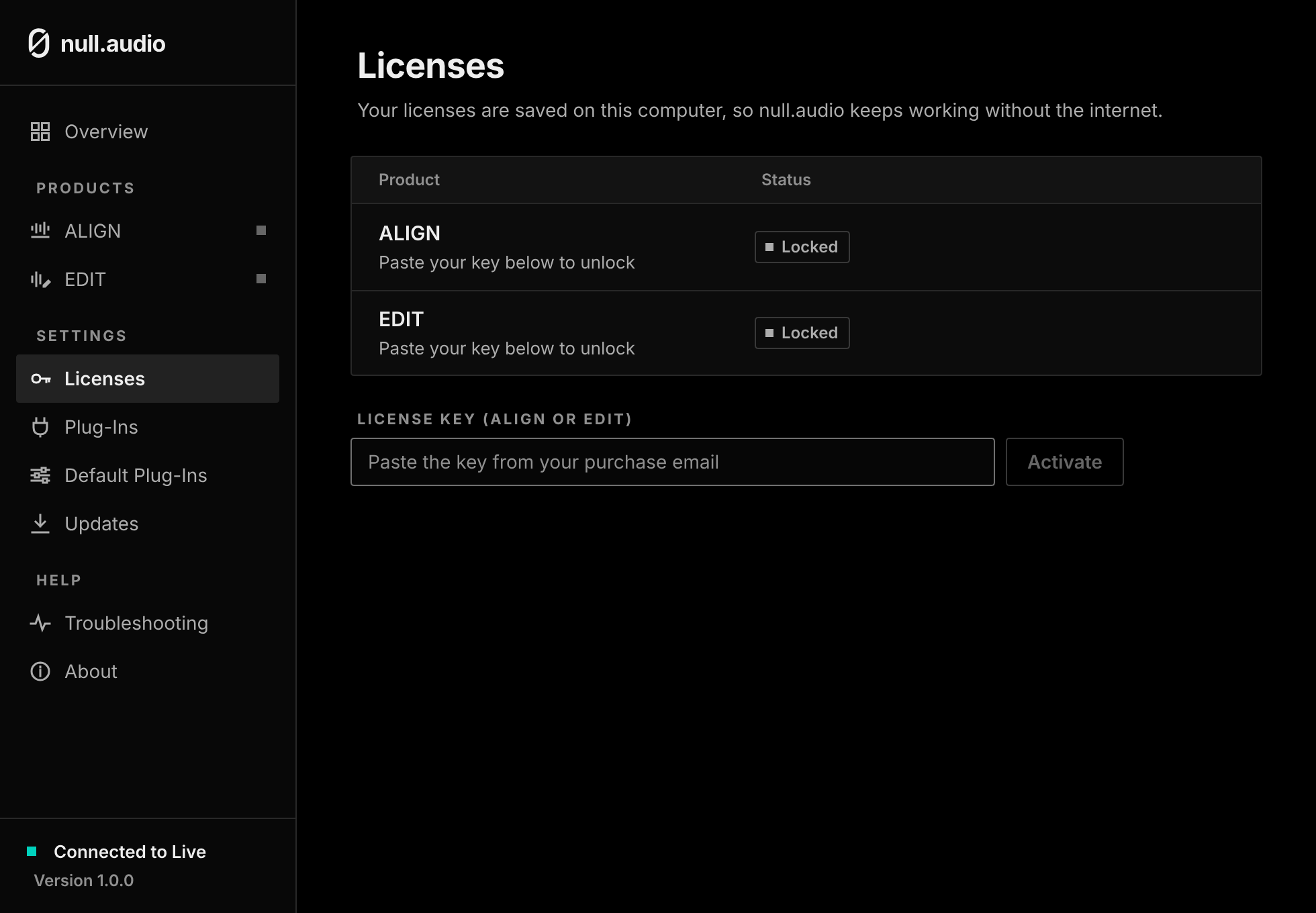
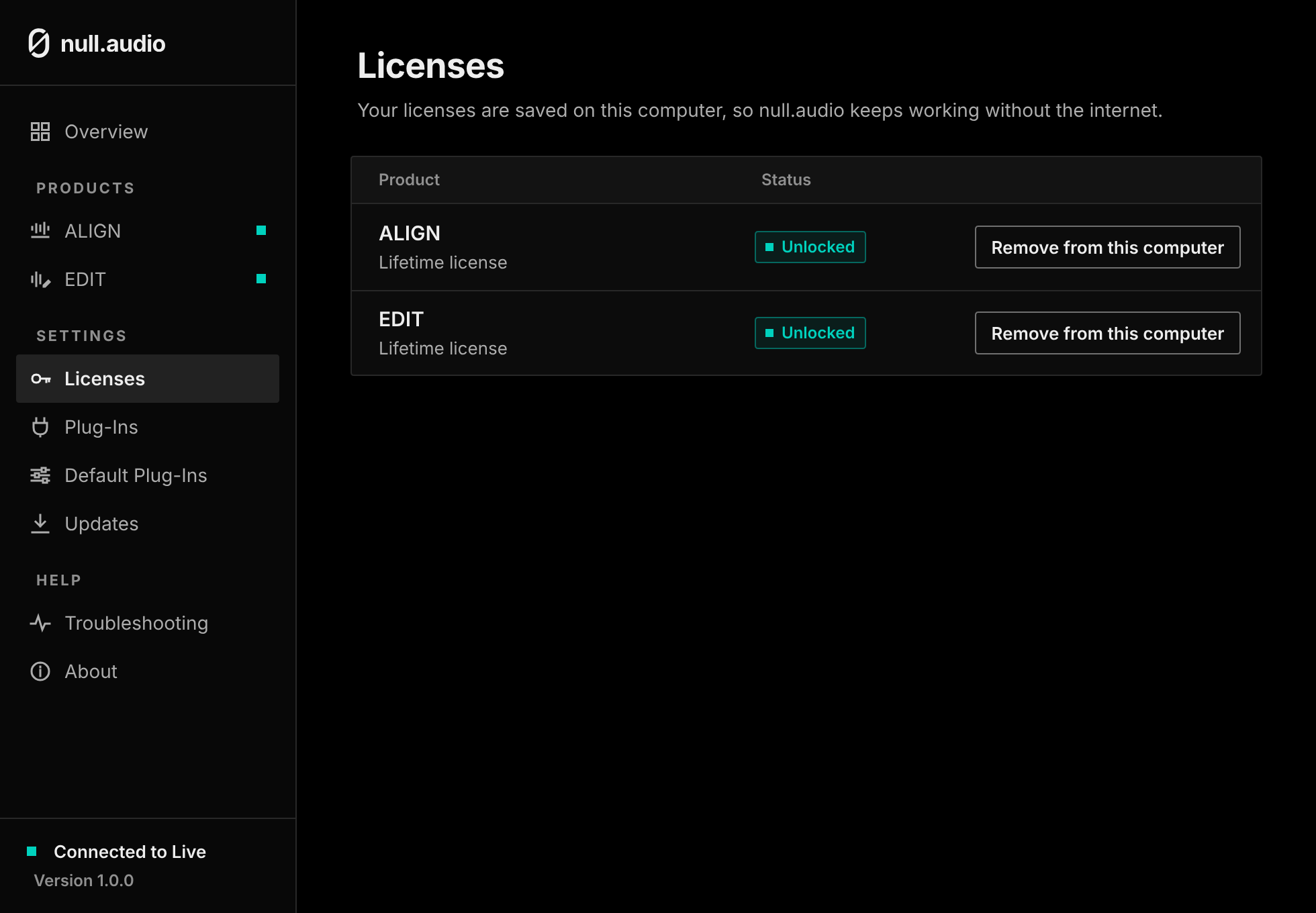
To unlock ALIGN or EDIT, open null.audio, go to Licenses and paste your license key, then press Activate.
Your licenses are saved on this computer, so null.audio keeps working without the internet.
5. Check your plug-ins
null.audio looks for the plug-ins ALIGN and EDIT can work with. Open Plug-Ins to see what it found. If a plug-in is missing, install it, then press Search for Plug-Ins.
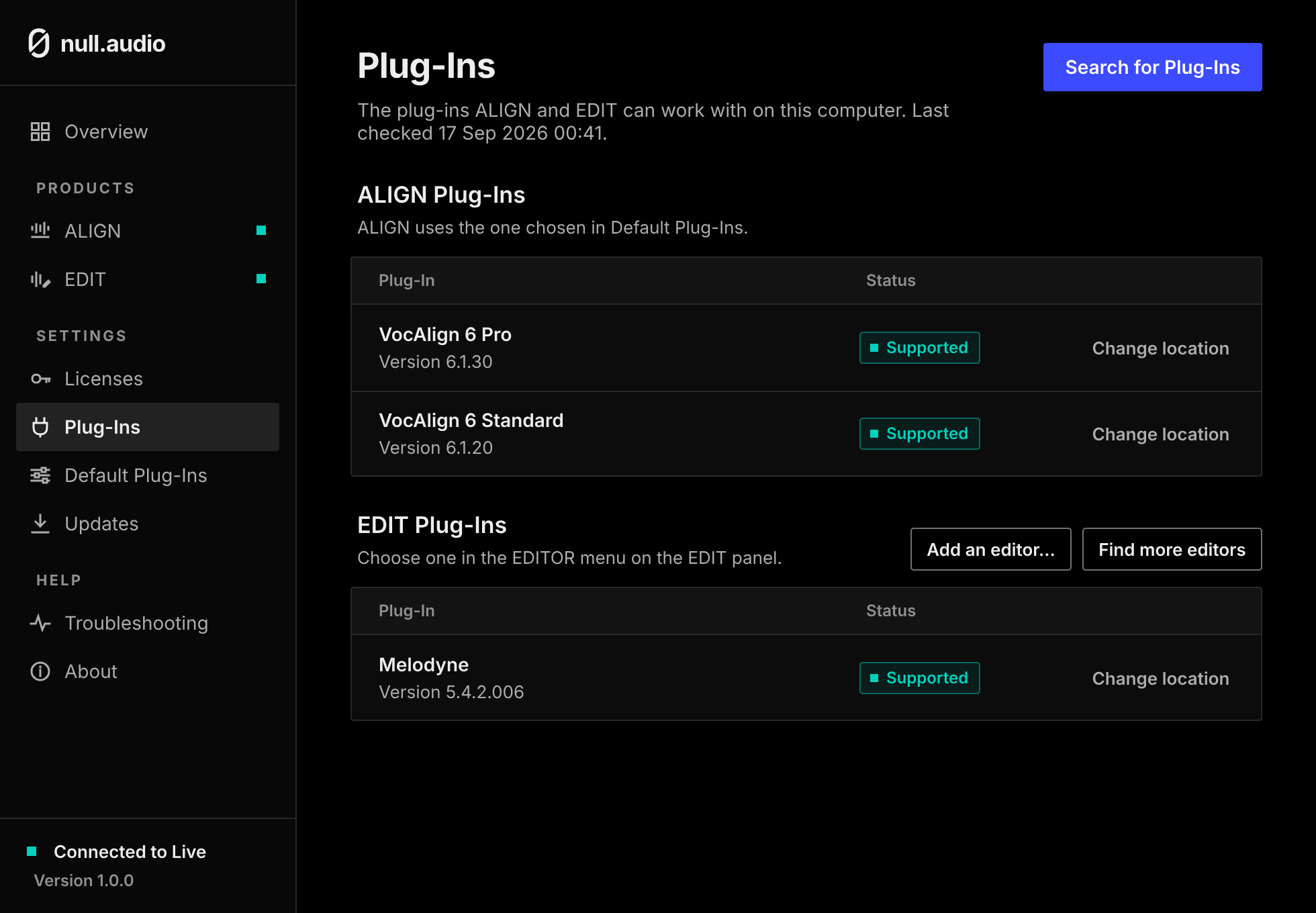
If you have more than one VocAlign, ALIGN uses under Default Plug-Ins on the same page says which one ALIGN opens.
Next: Align your first vocal or Edit your first clip.
Still stuck? Write to contact@null.audio. In null.audio, Troubleshooting → Copy support report puts everything we need on your clipboard.